
363 words
2 min read

Windows Firewall Logging for Blocked Connections: GUI or PowerShell

By · Docker Captain · CNCF Ambassador · IBM Champion
Cover image for the post 'Enable Logging in Windows Firewall'

This article is for those looking for a detailed and straightforward guide on installing enable logging in Windows Firewall.

WARNING

For security reasons, it is not recommended to disable Windows Firewall unless you are using a complete antivirus solution that includes a different firewall. In the case when Windows Firewall blocks the operation of an application, you need to study this event in detail using a file with logs and make an allowing rule for this application in Windows Firewall, if it is really necessary.

NOTE

This tutorial will cover several ways to enable logging in to Windows Firewall.

We go into the system under an account with administrator rights.

Open Server Manager, click on the “Tools” button in the upper right corner of the screen and select “Windows Firewall with Advanced Security”.
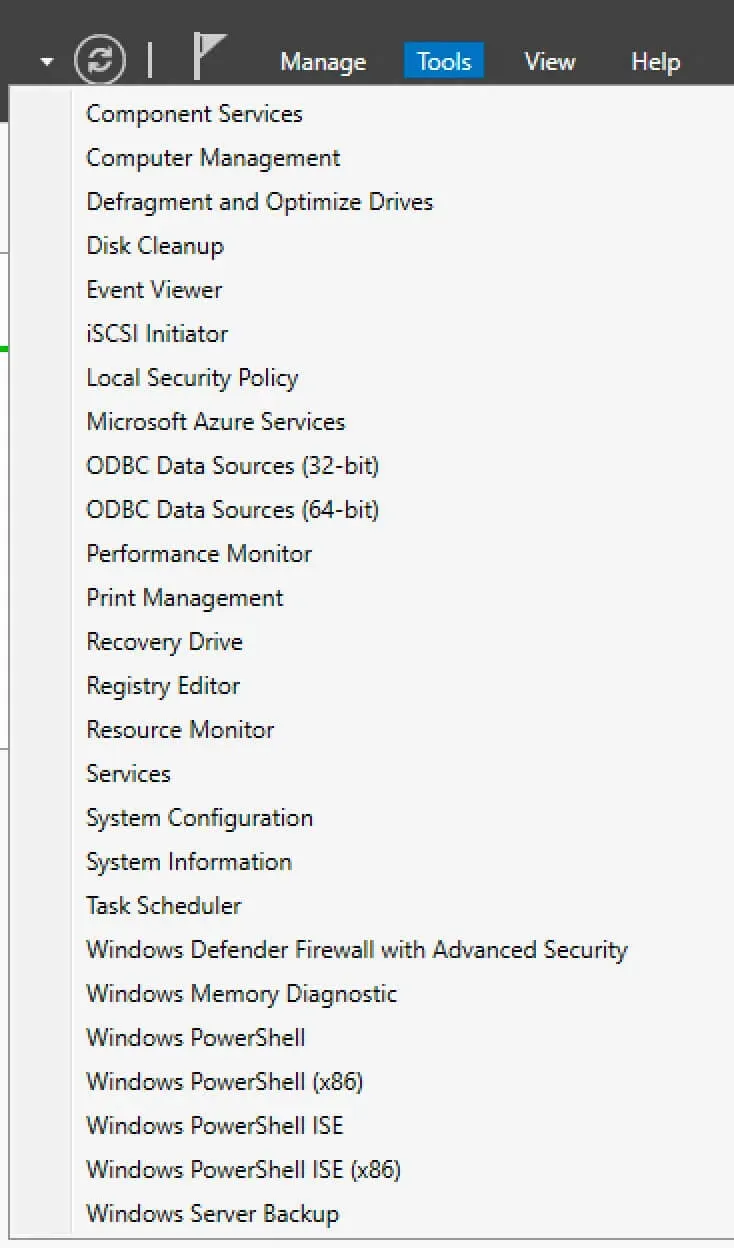
Enable Logging in Windows Firewall - Step 1

Next, right-click on “Windows Firewall with Advanced Security on Local Computer” and select “Properties”.
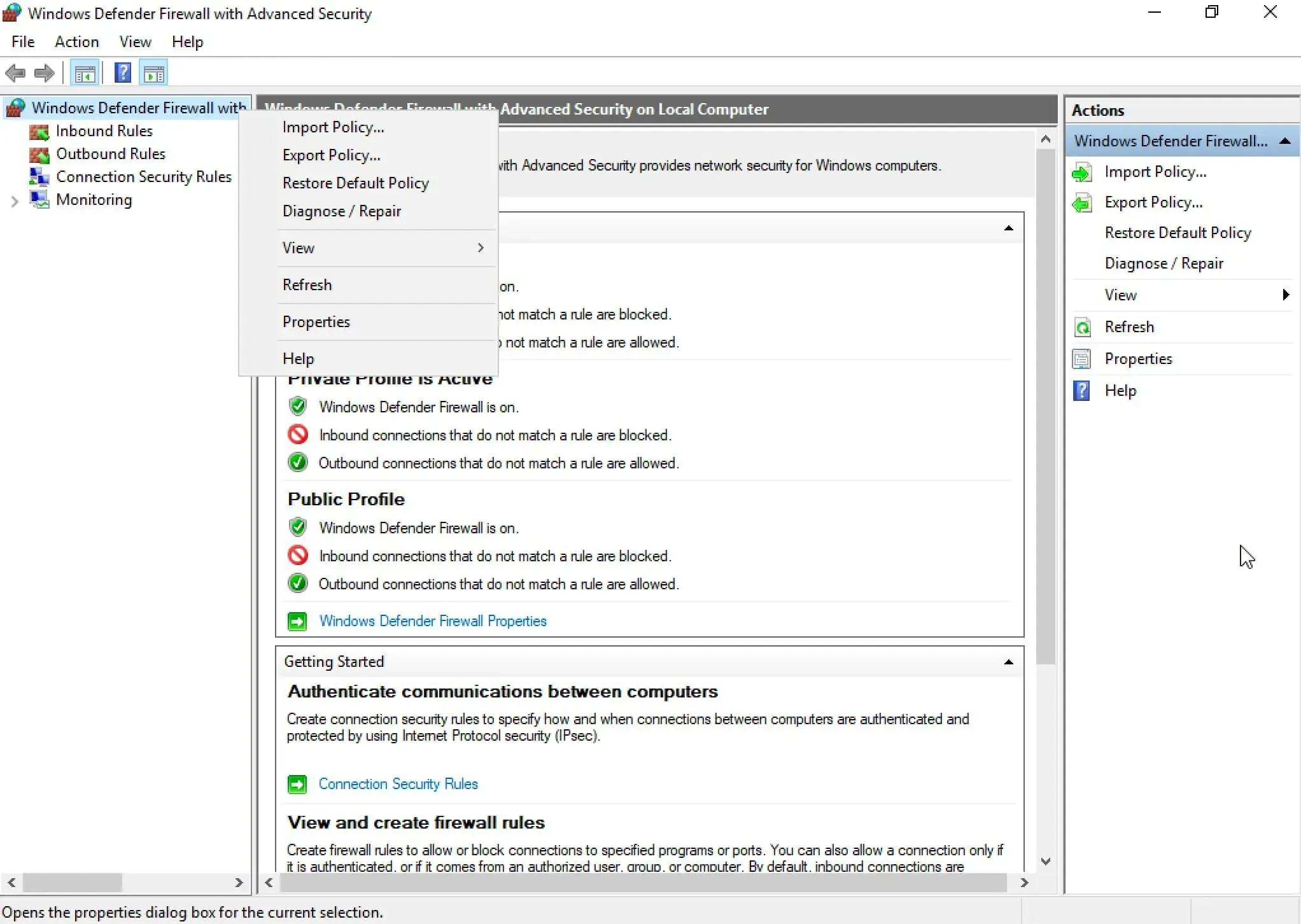
Enable Logging in Windows Firewall - Step 2

NOTE

In this guide, logging in Windows Firewall for a domain profile will be configured. Similarly, you can configure logging for other profiles.

On the “Domain Profile” tab, in the “Logging” section, select “Customize”.
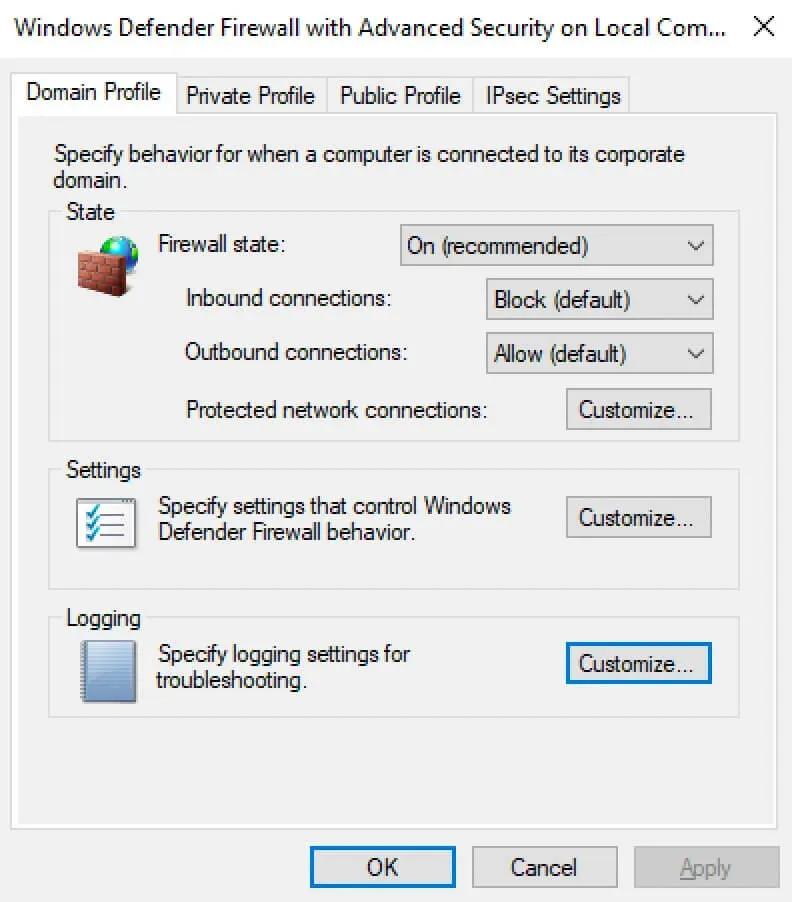
Enable Logging in Windows Firewall - Step 3

Further, in the “Name” field, you can specify where the file with the Windows Firewall logs will be stored.

In the “Size Limit” field, specify the maximum size of the file with logs.

To enable logging of dropped packets, select “Yes” in the “Log dropped packets” section.

Click on the “OK” button.
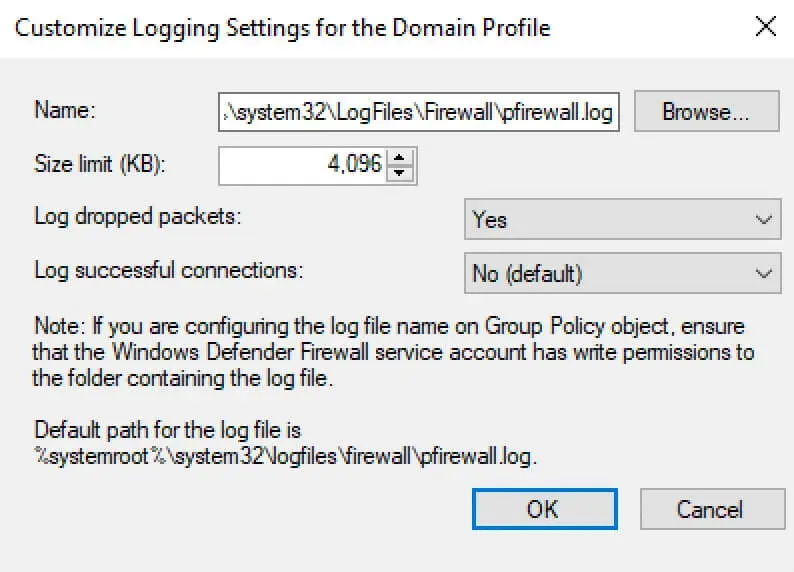
Enable Logging in Windows Firewall - Step 4

You can also enable logging in to Windows Firewall using Windows PowerShell.

On the keyboard, press the key combination “Win” and “x” and in the menu that opens, select “Windows PowerShell (Admin)”.
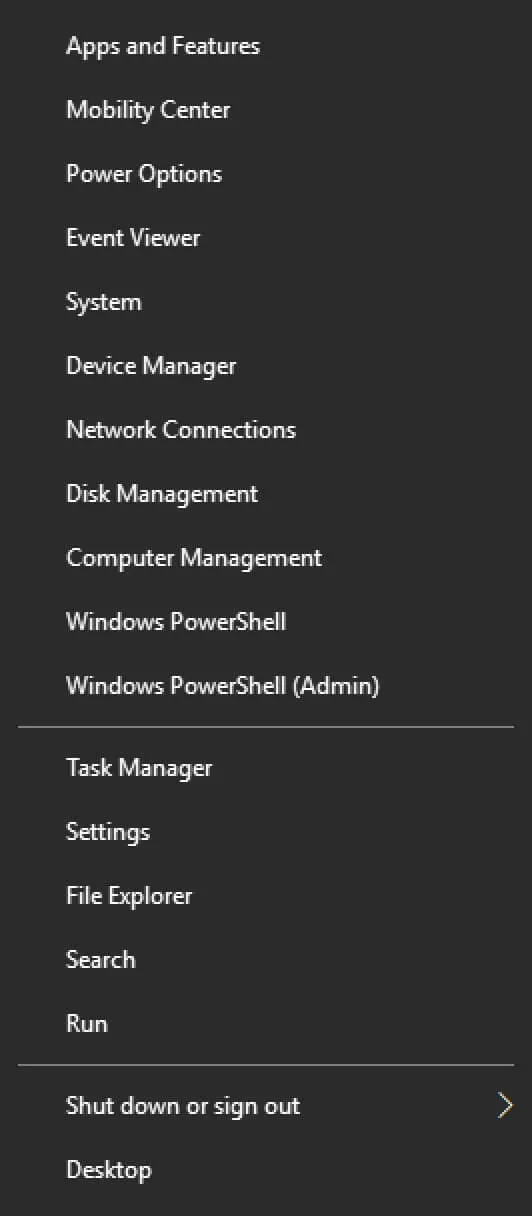
Enable Logging in Windows Firewall - Step 5

NOTE

In this guide, logging in Windows Firewall for a domain profile will be configured. Similarly, you can configure logging for other profiles.

We enable logging using the command:

Terminal window
Set-NetFireWallProfile -Profile Domain -LogBlocked True -LogMaxSize 4096 -LogFileName "%systemroot%\system32\LogFiles\Firewall\pfirewall.log"
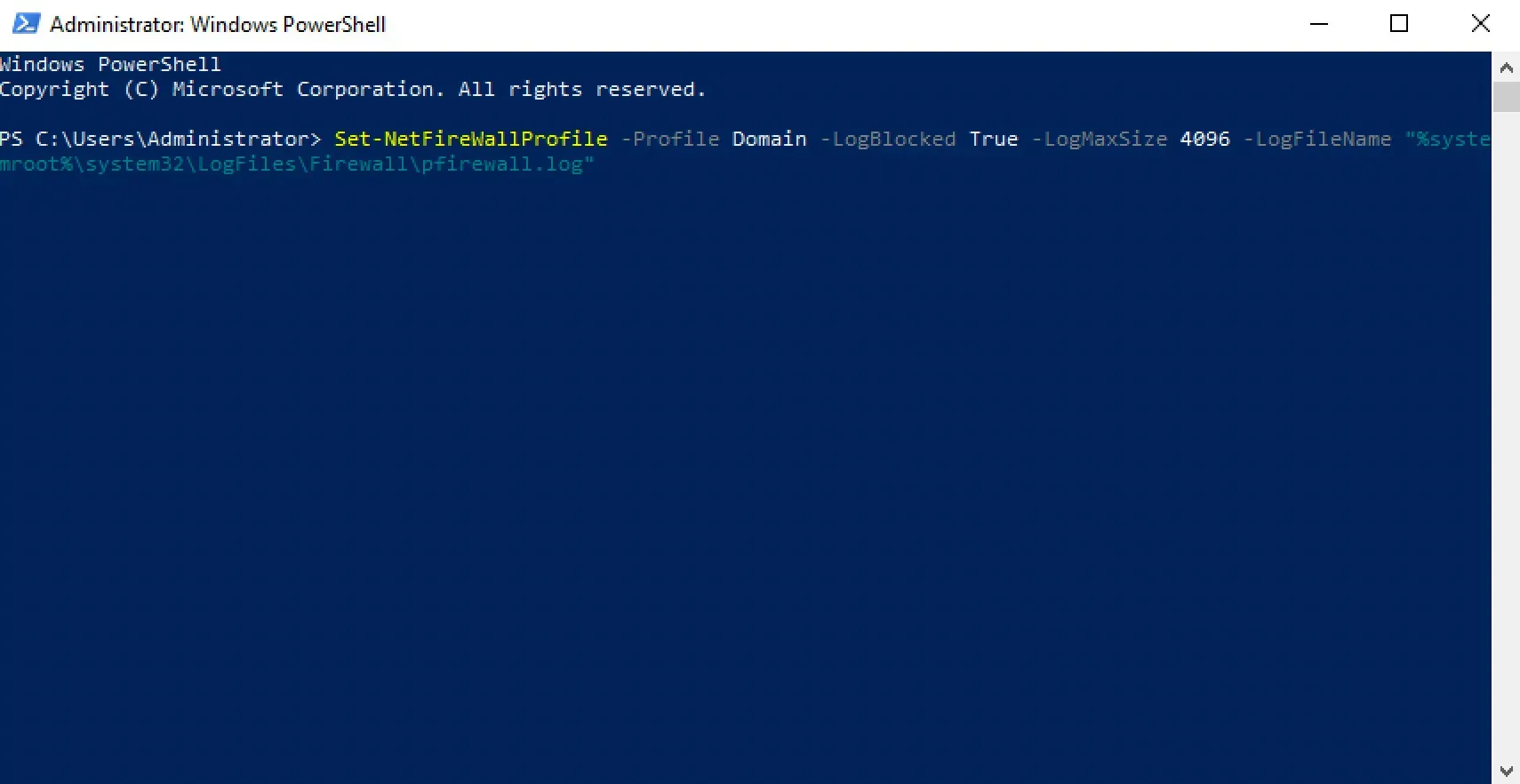
Enable Logging in Windows Firewall - Step 6

Now, looking at the file with the logs, you can examine in detail which application was blocked using Windows Firewall, and make an allow rule for it if it is really necessary.
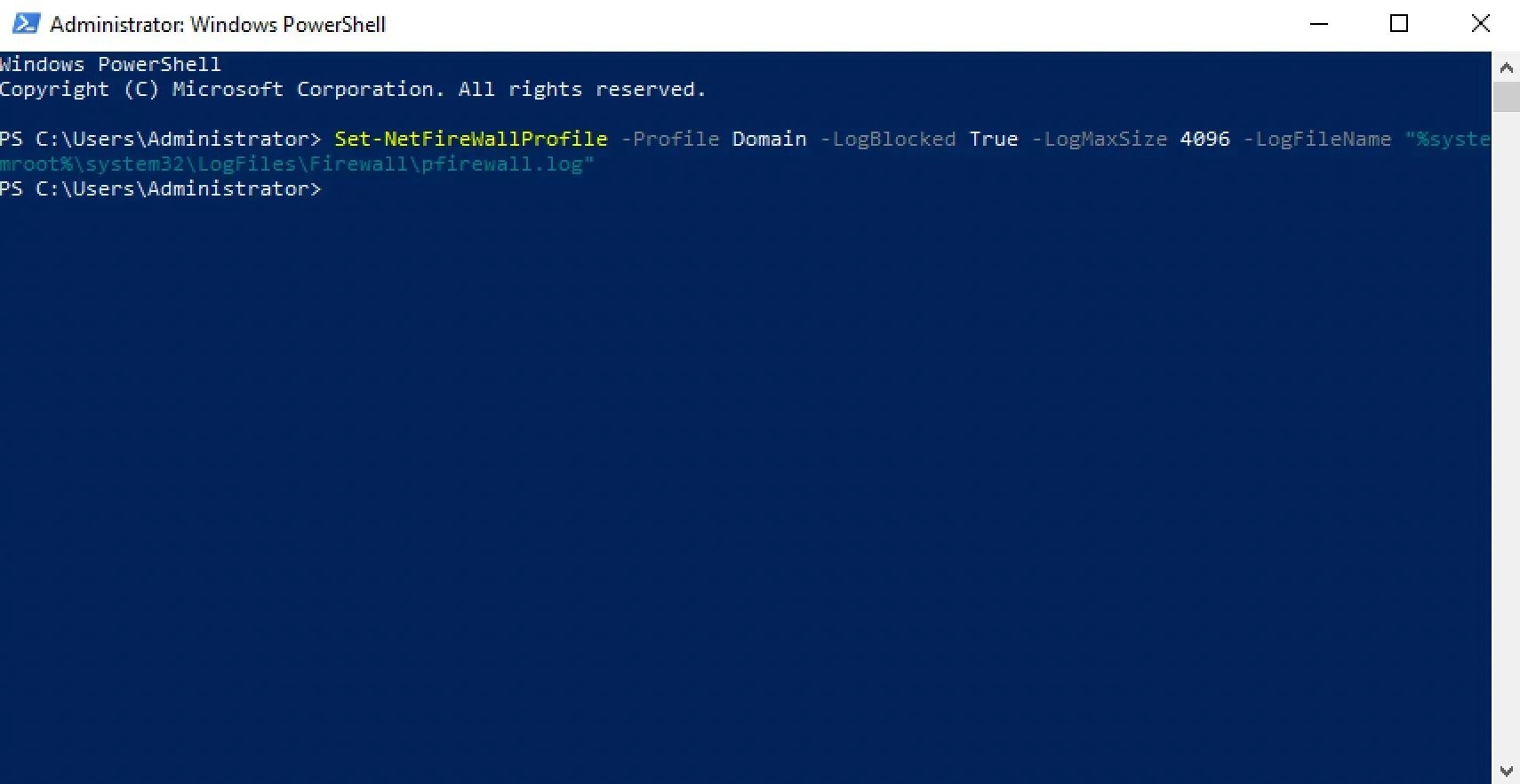
Enable Logging in Windows Firewall - Step 7


Vladimir Mikhalev

Docker Captain  ·  CNCF Ambassador  ·  IBM Champion

The Verdict — production-tested analysis on YouTube.

The Verdict

Inconvenient truths about shipping in the AI era

Container security, platform engineering, and the agentic shift — tested in production, argued without the hype. The verdict reaches your inbox the moment there's one worth sending.

Related Posts

Same category
  1. 1
    Recovering a Corrupt Exchange Database with Stellar Repair — Real-World Lab Test
    SysAdmin & IT Pro · We deliberately broke an Exchange 2019 server to test Stellar Repair on a dirty-shutdown EDB file. The recovery process, lab setup, and lessons learned.
  2. 2
    Terminal, Shell, Command Line, Prompt: Four Words, Four Things
    SysAdmin & IT Pro · The terminal is the window, the shell runs your commands, the prompt says it is ready, the command line is the idea. Plain definitions, examples, a cheat sheet.
  3. 3
    Install Ubuntu Server 22.04 LTS
    SysAdmin & IT Pro · Step-by-step guide to install Ubuntu Server 22.04 LTS. Covers language, disk setup, OpenSSH, user creation, and system configuration for beginners.
  4. 4
    Install OTRS on Ubuntu Server
    SysAdmin & IT Pro · Guide to installing OTRS Community Edition on Ubuntu Server — configure PostgreSQL, Apache, and SSL with Let's Encrypt, and launch OTRS securely.

Random Posts

Random
  1. 1
    Docker Compose watch: Sync or Rebuild on Save, No Bind-Mount Surprises
    DevOps & Cloud · What compose watch does, sync versus rebuild, a Node.js hot-reload example you can run, and why it replaces bind mounts for local development.
  2. 2
    The Fates of Famous Figures Under the Pressure of Power from the Russian Empire to Our Days
    Opinion & Culture · Explore the lives of famous figures persecuted by Russian regimes—from the Empire to today. Discover stories of censorship, exile, and resistance.
  3. 3
    Install GLPI with Docker Compose, Traefik and Let's Encrypt
    Self-Hosting · GLPI asset management and helpdesk behind Traefik with Let's Encrypt: the Docker networks, the compose file from my repository, one command, first login.
  4. 4
    Cloudflare Web Analytics on Astro — Why Removing GA4 Unlocked Lighthouse 100
    DevOps & Cloud · How removing Google Analytics 4 from an Astro site unlocked Lighthouse 100, why Cloudflare Web Analytics replaced it, and what the tradeoffs actually cost.
Windows Firewall Logging for Blocked Connections: GUI or PowerShell
https://heyvaldemar.com/enable-logging-in-windows-firewall/
Author
Vladimir Mikhalev
Published
2021-02-18
Updated
2026-11-05
License
CC BY-NC-SA 4.0