
Export Windows Drivers with PowerShell, Then Put Them Back
By Vladimir Mikhalev · Docker Captain · CNCF Ambassador · IBM Champion
One PowerShell cmdlet exports every third-party driver from a Windows installation into a folder, with the INF files and everything each INF references. Windows 8.1 Update 1 and Windows Server 2012 R2 Update introduced Export-WindowsDriver, and it is still in the DISM module on Windows 11 and Windows Server 2025. What the original version of this guide left out is the second half: what to do with the folder. That half is below, with the commands from Microsoft’s own documentation.
NOTE
Export-WindowsDriverexports third-party drivers only: the ones a vendor added to the driver store. Drivers that ship inside Windows stay where they are, and a fresh installation brings them back on its own.
Export the drivers from the running system
We go into the system under an account with administrator rights.
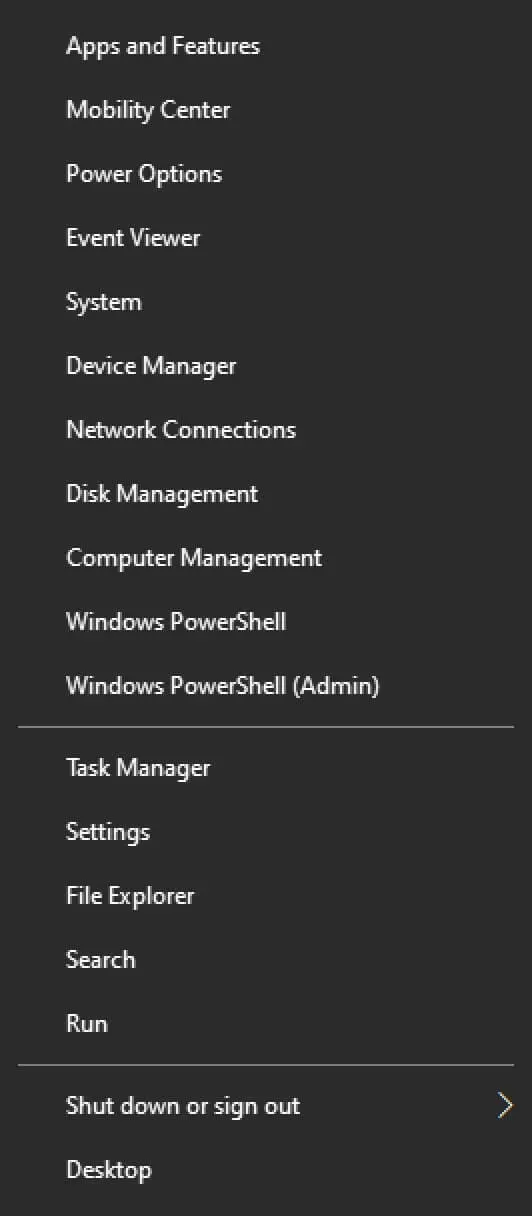
On the keyboard, press the key combination “Win” and “x” and in the menu that opens, select “Windows PowerShell (Admin)”. On Windows 11 the same menu offers “Terminal (Admin)”, which opens PowerShell too.
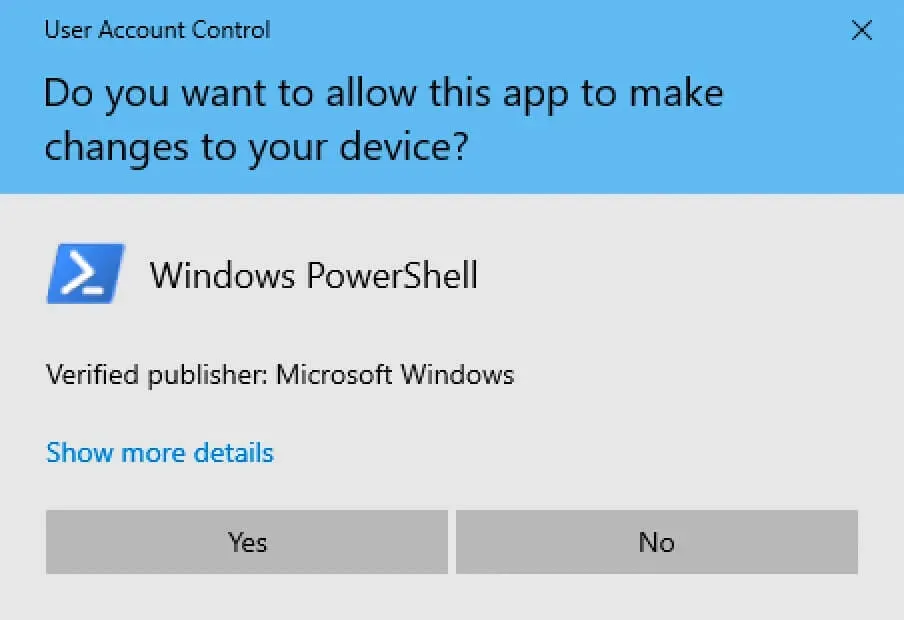
Click on the “Yes” button.
NOTEIn this manual, the drivers and their descriptions will be exported to the “Temp” folder on the “C” drive. The description of the exported drivers will be saved to the “drivers.txt” file.
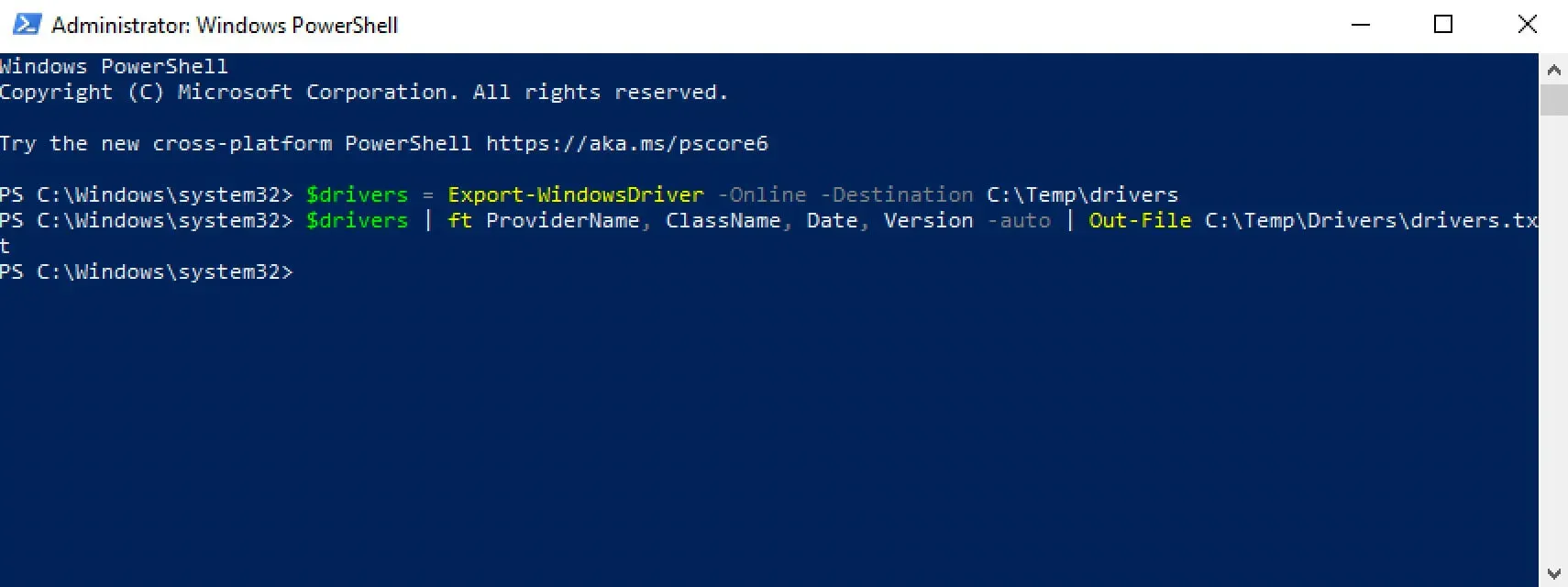
Let’s prepare the variable using the command:
$drivers = Export-WindowsDriver -Online -Destination C:\Temp\drivers 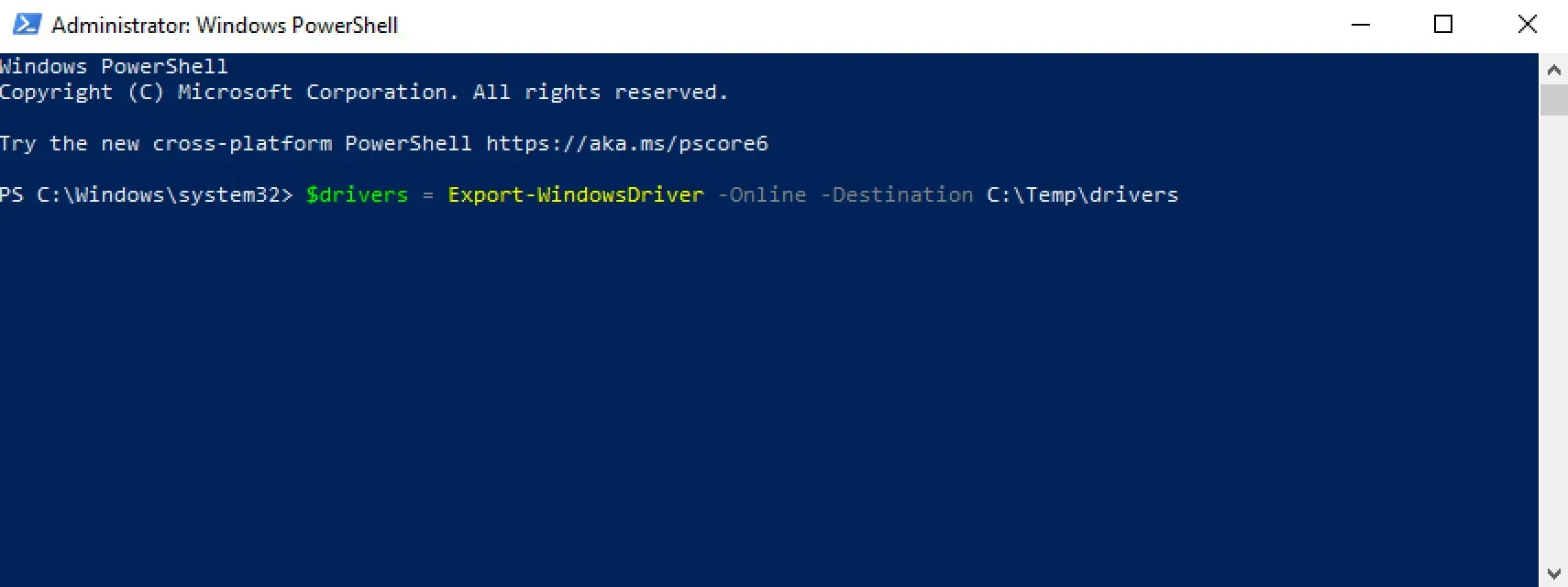
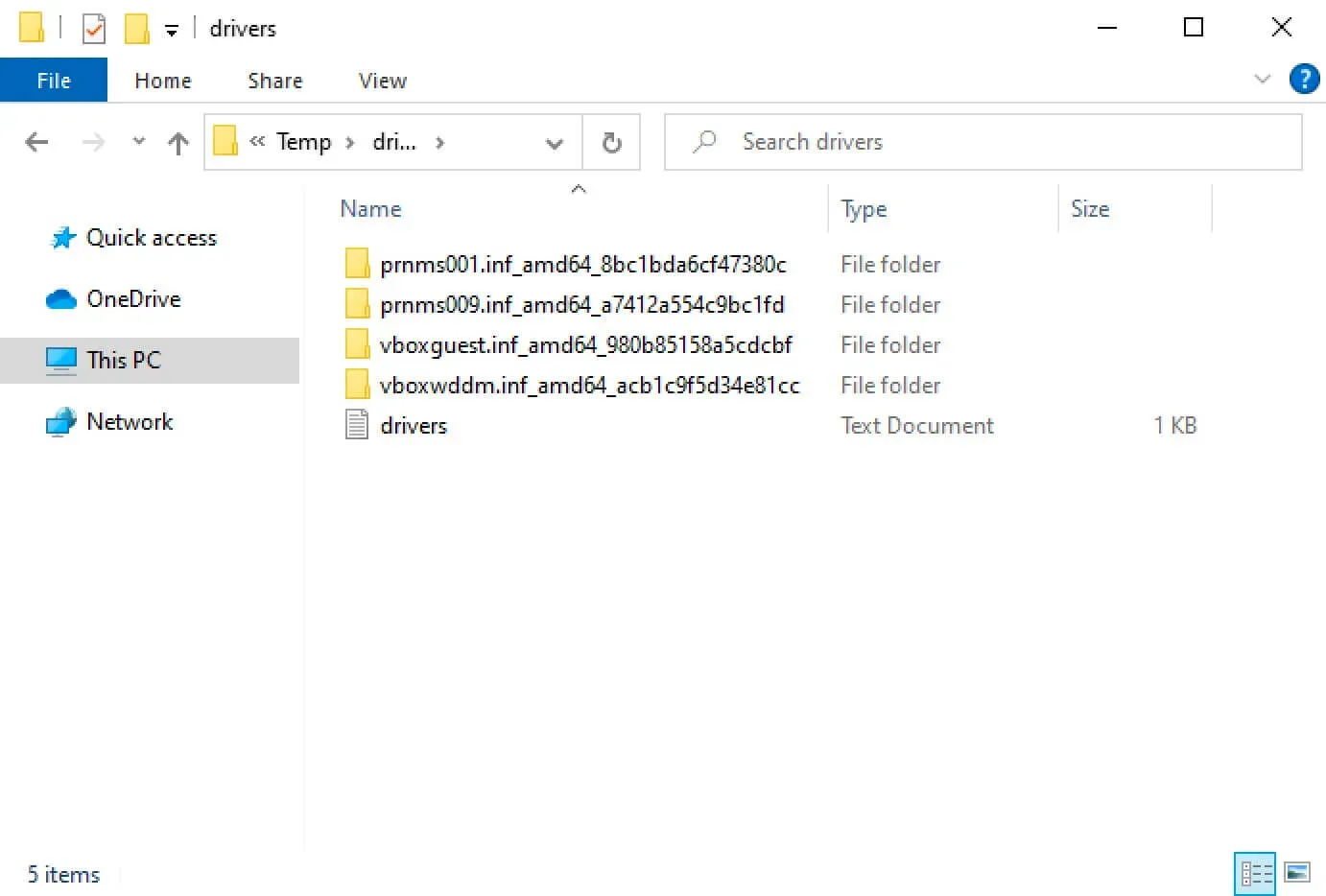
-Online means the Windows you are running right now. The cmdlet creates one subfolder per driver package, named after the INF file, and returns one object per package. We write their descriptions next to the drivers using the command:
$drivers | ft ProviderName, ClassName, Date, Version -auto | Out-File C:\Temp\Drivers\drivers.txtft is the short form of Format-Table; the long form works the same.
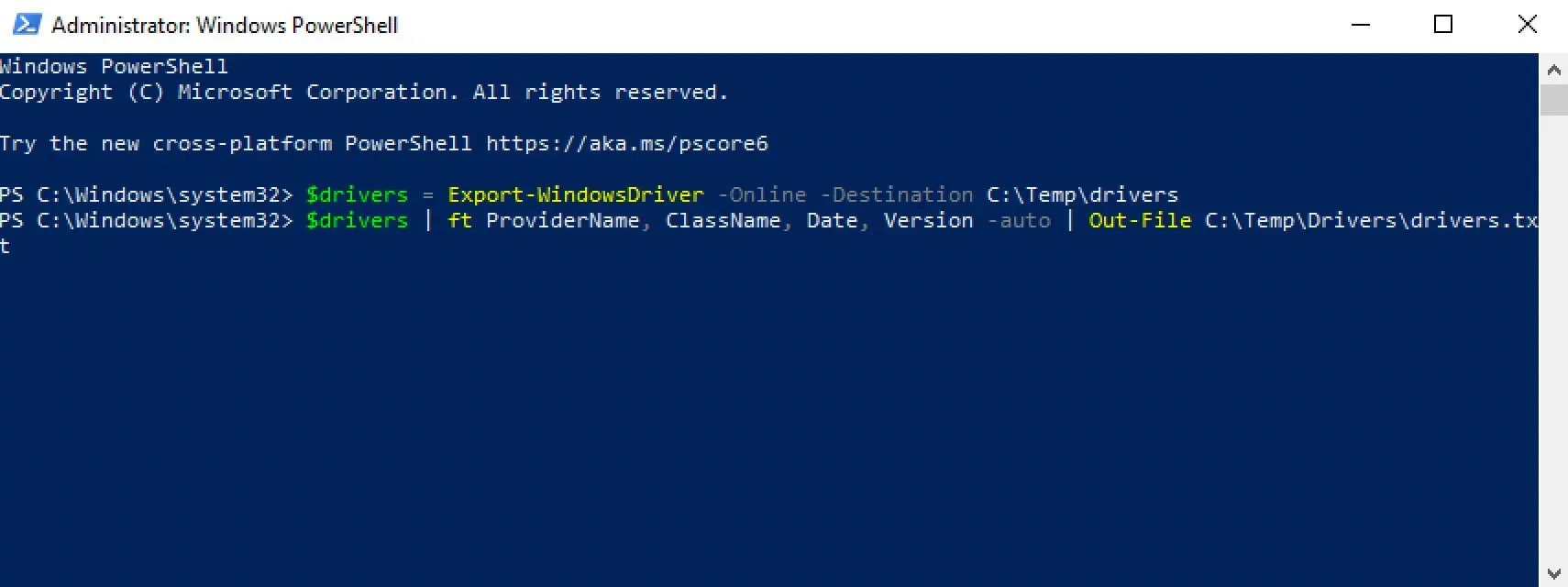
The drivers and their descriptions have been successfully exported to the “Temp” folder on the “C” drive.
Export from an offline image instead
The same cmdlet reads a Windows that is not running: a mounted image, or a system drive attached to another machine. Replace -Online with -Path and point it at the root of that Windows:
Export-WindowsDriver -Path D:\offline-image -Destination C:\Temp\driversThis is the way to rescue drivers from a machine that no longer boots, or to pull them out of a reference image before you rebuild it.
Put the drivers back on a new machine
The exported folder is a set of driver packages, so pnputil installs them in one pass. Copy the folder to the new machine, open an elevated PowerShell or Command Prompt, and run:
pnputil /add-driver C:\Temp\drivers\*.inf /subdirs /install/subdirs walks every subfolder the export created, and /install installs each package on any matching device, instead of only staging it in the driver store. Add /reboot if you want the machine to restart when a driver requires it. The syntax is from Microsoft’s pnputil reference.
Add them to an installation image
For a fleet of identical machines, the better place for the drivers is the image itself. Mount install.wim, add the folder with /Recurse, and commit. These are Microsoft’s commands from Add and remove drivers to an offline Windows image, with the paths from this guide:
Dism /Mount-Image /ImageFile:C:\images\install.wim /MountDir:C:\offlineDism /Image:C:\offline /Add-Driver /Driver:C:\Temp\drivers /RecurseDism /Image:C:\offline /Get-DriversDism /Unmount-Image /MountDir:C:\offline /Commit/Get-Drivers lists what the image now carries, so you can check the list before the commit. Microsoft notes that the machine doing this must run Windows 10 or later, Windows Server 2016 or later, or a matching Windows PE.
Two things to know before you rely on the export
The export is only as good as the driver store it came from. A driver installed by a vendor’s setup program that never registered an INF in the store is not in the export; check drivers.txt against Device Manager on the source machine before you wipe it.
And the folder holds exactly the versions that were installed. That is the point when you want a known-good set, and a trap when the source machine was behind on updates. Run Windows Update on the new machine afterwards, or pull current packages from the vendor for anything that matters, such as storage and network drivers.