147 words
1 min read

Install Minecraft on Windows

By · Docker Captain · CNCF Ambassador · IBM Champion
Cover image for the post 'Install Minecraft on Windows'

This article is for those looking for a detailed and straightforward guide on installing Minecraft on Windows.

If you’ve purchased a license, you can begin downloading and installing the game. Visit the Minecraft download page and click the “Download” button under the “Download Minecraft: Java Edition for Windows” section.
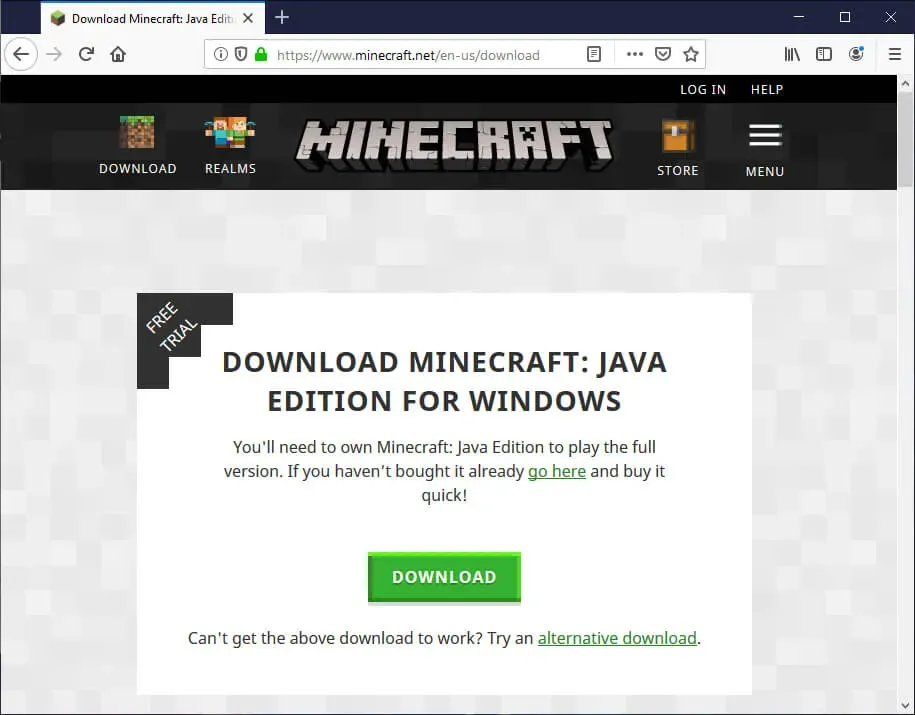
Install Minecraft on Windows - Step 1

Go to “Downloads” and run “MinecraftInstaller.msi”.
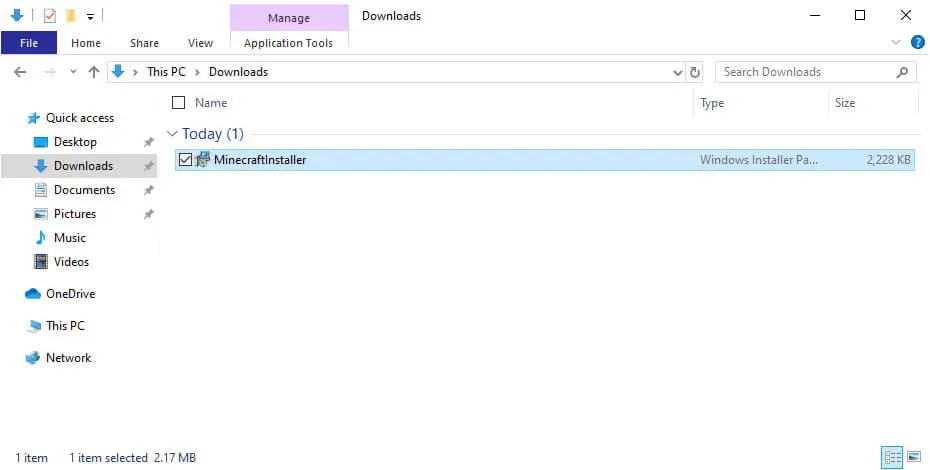
Install Minecraft on Windows - Step 2

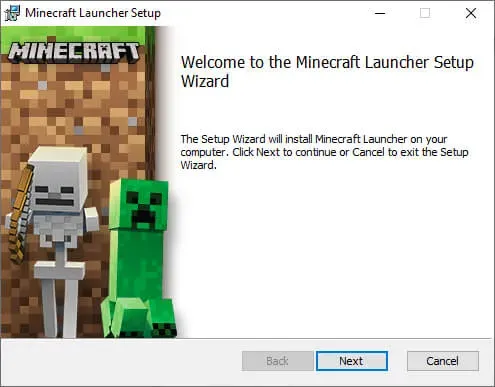
Click on the “Next” button.

Install Minecraft on Windows - Step 3

Next, you can choose where to install Minecraft.

Click on the “Next” button.
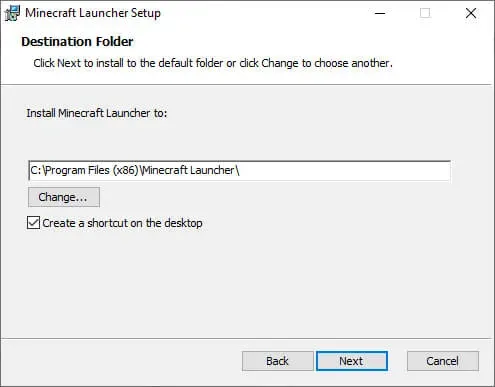
Install Minecraft on Windows - Step 4

You can begin the Minecraft installation process.

Click on the “Install” button.
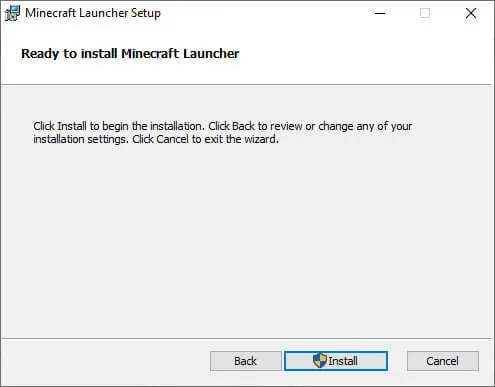
Install Minecraft on Windows - Step 5

Minecraft installation completed successfully.

Check the box “Start Minecraft after closing the installer” and click on the “Finish” button.
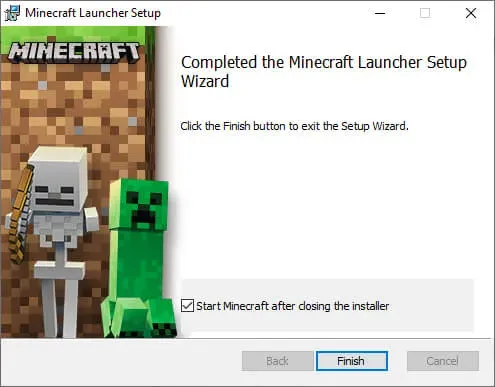
Install Minecraft on Windows - Step 6

Click on the “Login” button.

I wish you all a pleasant game!
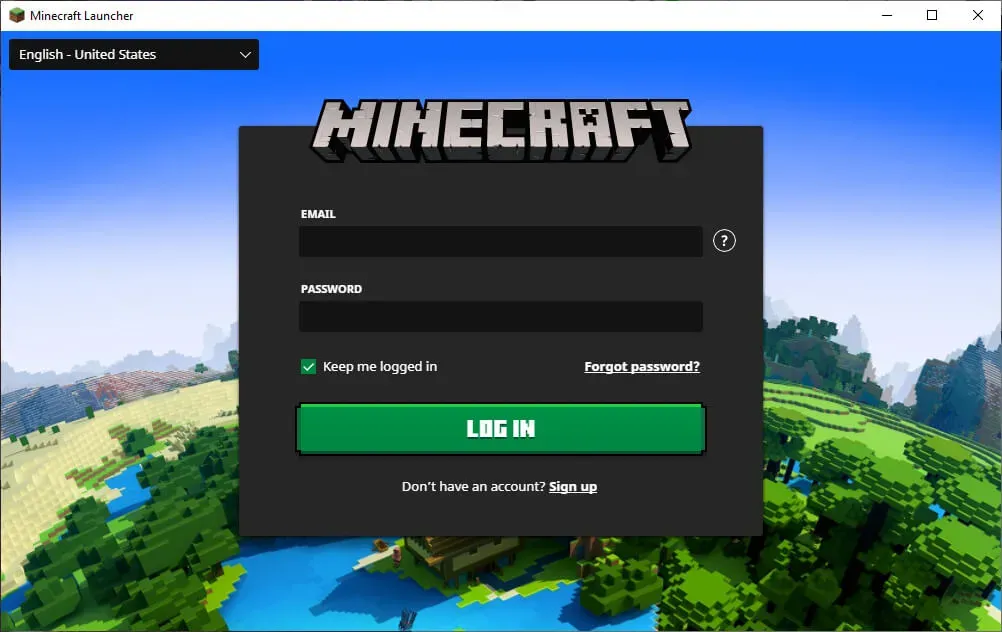
Install Minecraft on Windows - Step 7


Vladimir Mikhalev

Docker Captain  ·  CNCF Ambassador  ·  IBM Champion

The Verdict — production-tested analysis on YouTube.

The Verdict

Inconvenient truths about shipping in the AI era

Container security, platform engineering, and the agentic shift — tested in production, argued without the hype. The verdict reaches your inbox the moment there's one worth sending.

Related Posts

Same category
  1. 1
    Recovering a Corrupt Exchange Database with Stellar Repair — Real-World Lab Test
    SysAdmin & IT Pro · We deliberately broke an Exchange 2019 server to test Stellar Repair on a dirty-shutdown EDB file. The recovery process, lab setup, and lessons learned.
  2. 2
    Terminal, Shell, Command Line, Prompt: Four Words, Four Things
    SysAdmin & IT Pro · The terminal is the window, the shell runs your commands, the prompt says it is ready, the command line is the idea. Plain definitions, examples, a cheat sheet.
  3. 3
    Install Ubuntu Server 22.04 LTS
    SysAdmin & IT Pro · Step-by-step guide to install Ubuntu Server 22.04 LTS. Covers language, disk setup, OpenSSH, user creation, and system configuration for beginners.
  4. 4
    Install OTRS on Ubuntu Server
    SysAdmin & IT Pro · Guide to installing OTRS Community Edition on Ubuntu Server — configure PostgreSQL, Apache, and SSL with Let's Encrypt, and launch OTRS securely.

Random Posts

Random
  1. 1
    Stand with Ukraine
    Opinion & Culture · Learn why standing with Ukraine matters. Explore the truth behind Russia's invasion, political repression, and how you can support Ukraine today.
  2. 2
    Install Windows Server 2012 R2
    SysAdmin & IT Pro · Step-by-step guide to install Windows Server 2012 R2 using official media with a GUI setup. Get a clean, secure server installation.
  3. 3
    Install SonarQube Using Docker Compose
    Self-Hosting · Step-by-step guide to installing SonarQube using Docker Compose and Traefik on Ubuntu Server. Includes secure setup, domain config, and web dashboard access.
  4. 4
    Machine Learning and Deep Learning Courses on YouTube
    AI & MLOps · Explore the best free YouTube courses in machine learning and deep learning—from beginner-friendly foundations to advanced topics like NLP, CV, and MLOps.
Install Minecraft on Windows
https://heyvaldemar.com/install-minecraft-on-windows/
Author
Vladimir Mikhalev
Published
2019-07-19
Updated
2026-03-23
License
CC BY-NC-SA 4.0