517 words
3 min read

Upgrade Spigot on Ubuntu Server with Multicraft

By · Docker Captain · CNCF Ambassador · IBM Champion
Cover image for the post 'Upgrade Spigot on Ubuntu Server with Multicraft'

This article is for those looking for a detailed and clear guide on how to upgrade spigot on Ubuntu Server with Multicraft.

Spigot is a modified Minecraft server built on top of the CraftBukkit core. Spigot is known for its stability, performance, support for a large number of plugins and is intended to replace CraftBukkit.

IMPORTANT

The server must have Multicraft, OpenJDK and Git installed.

You can find out how to install Multicraft on Ubuntu Server by reading Install Multicraft on Ubuntu Server.

To install OpenJDK and Git on the server, you can use the command:

Terminal window
sudo apt install -y default-jdk git
IMPORTANT

OpenSSH must be installed on the server, and port 22 must be open to be able to connect to the server using the SSH protocol.

To install OpenSSH on a server, you can use the command:

Terminal window
sudo apt install openssh-server
NOTE

To connect to the server from a Windows system, you can use tools like PuTTY or MobaXterm.

NOTE

This guide walks you through connecting to a server with the iTerm2 terminal emulator on macOS.

We connect to the Multicraft server on which we plan to update Spigot.

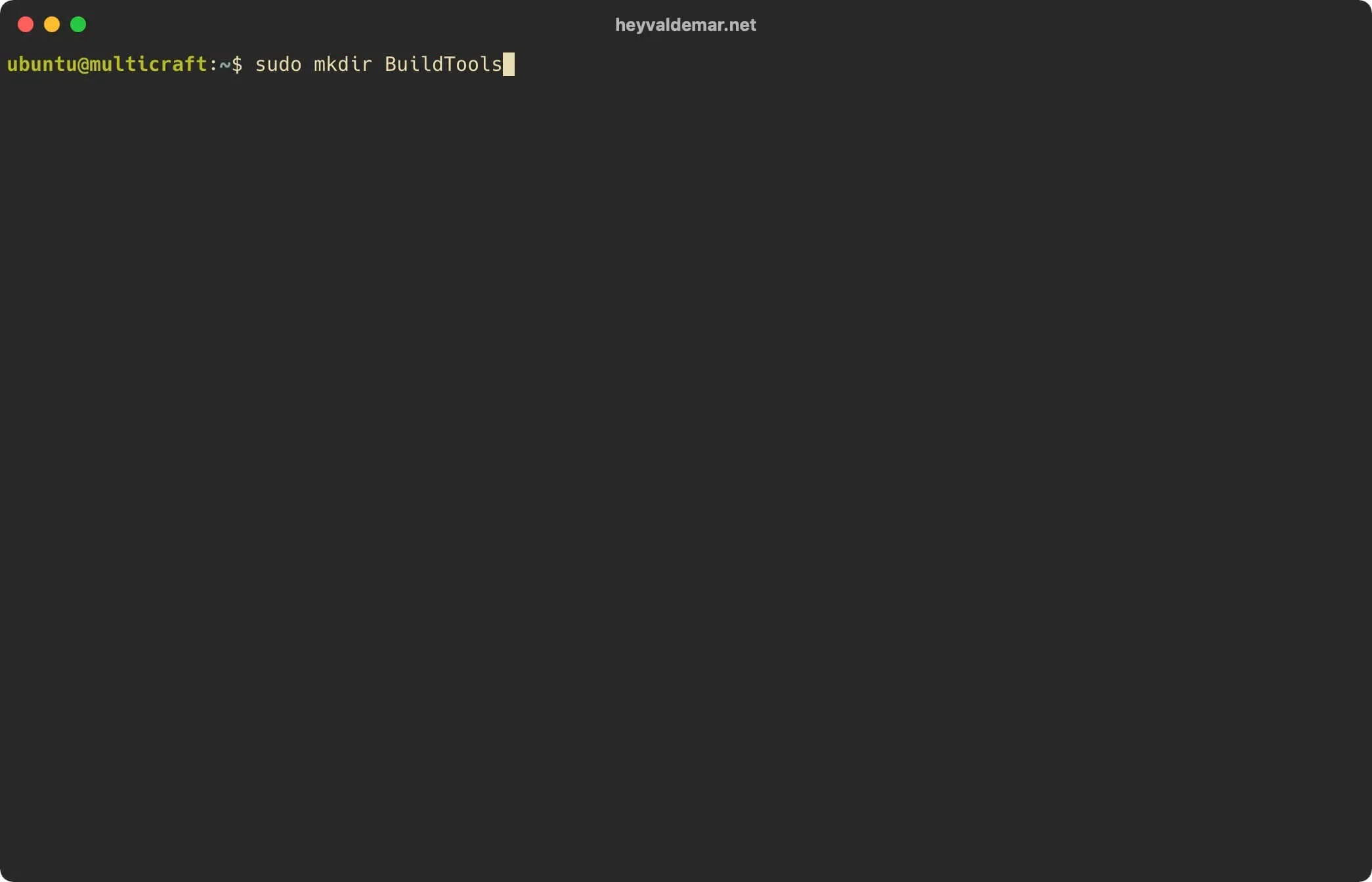
Let’s create a new directory that we need to create a new version of Spigot using the command:

Terminal window
sudo mkdir BuildTools

Upgrade Spigot on Ubuntu Server with Multicraft - Step 1

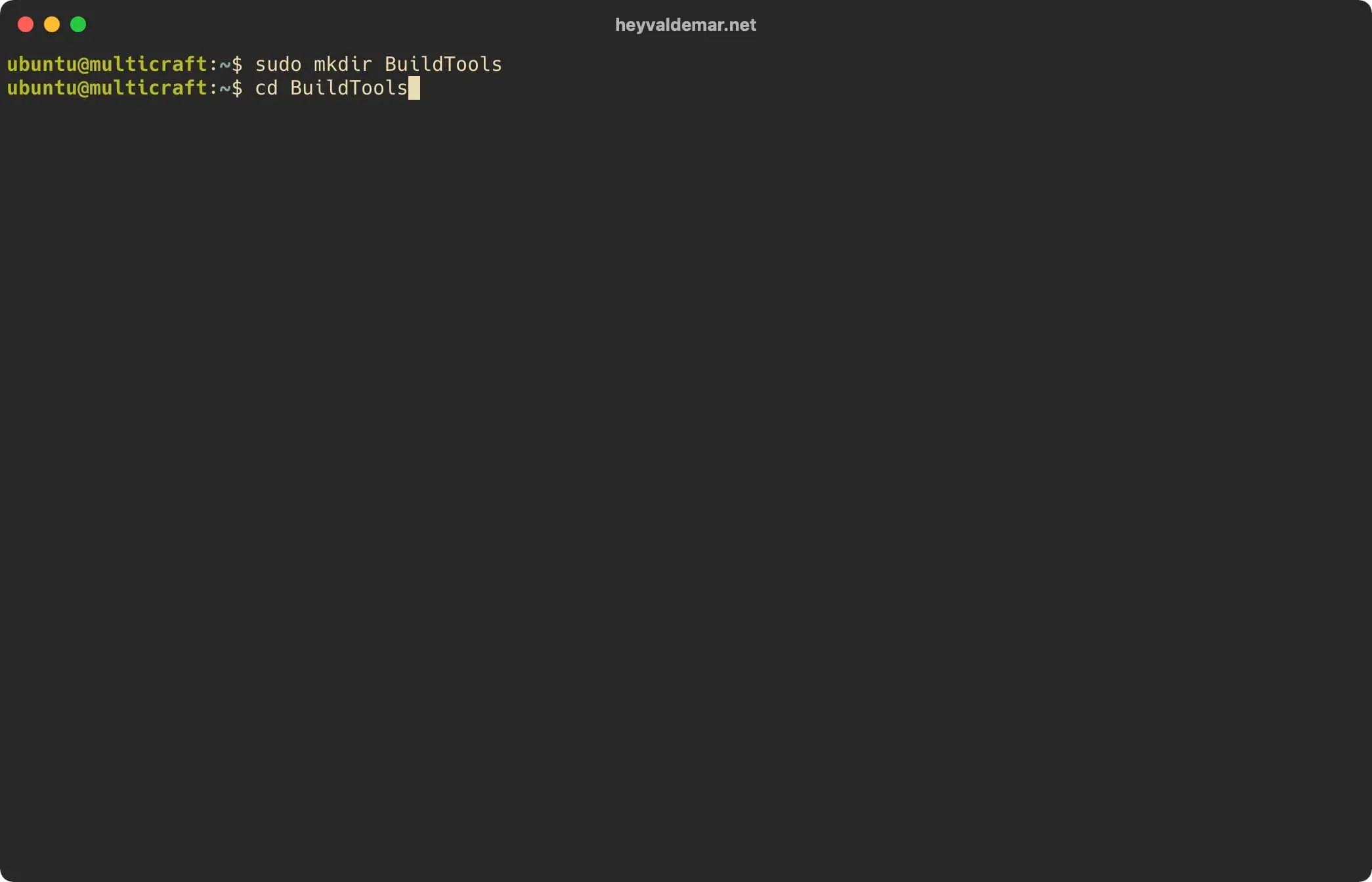
Go to the new directory using the command:

Terminal window
cd BuildTools

Upgrade Spigot on Ubuntu Server with Multicraft - Step 2

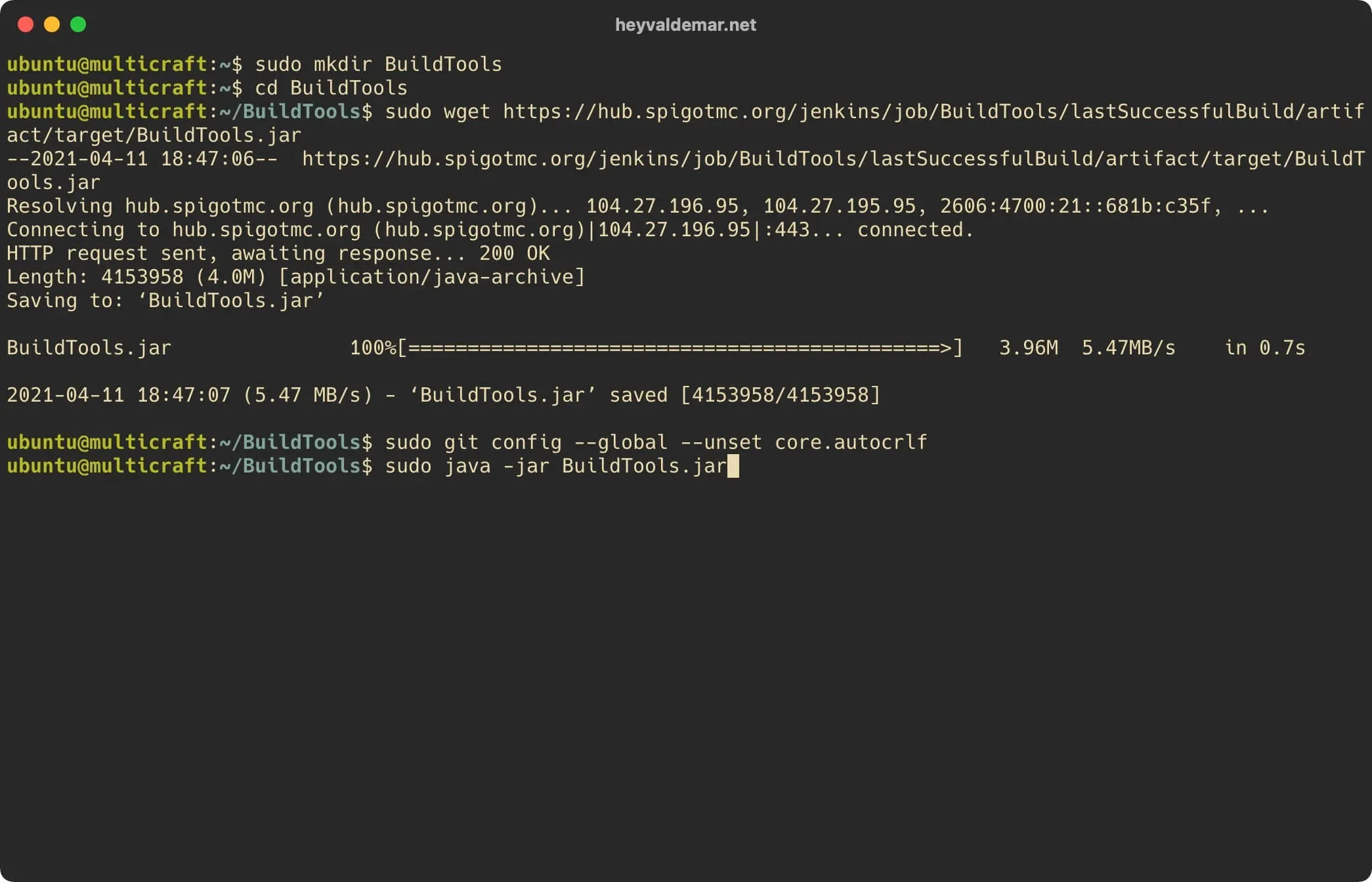
Load the “BuildTools.jar” file using the command:

Terminal window
sudo wget https://hub.spigotmc.org/jenkins/job/BuildTools/lastSuccessfulBuild/artifact/target/BuildTools.jar

The “BuildTools.jar” file is required to create a new version of Spigot.
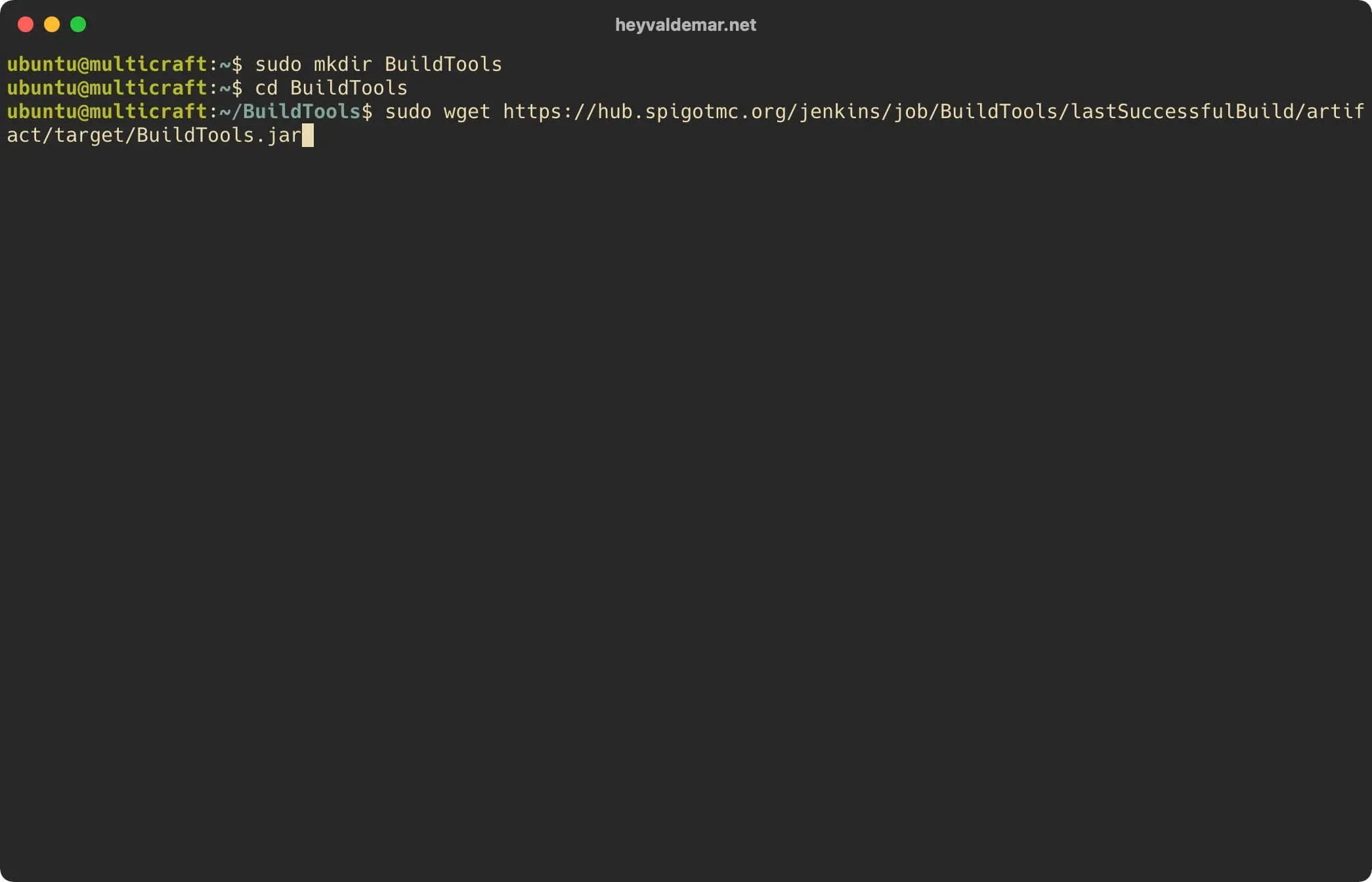
Upgrade Spigot on Ubuntu Server with Multicraft - Step 3

Let’s make changes to the Git configuration using the command:

Terminal window
sudo git config --global --unset core.autocrlf
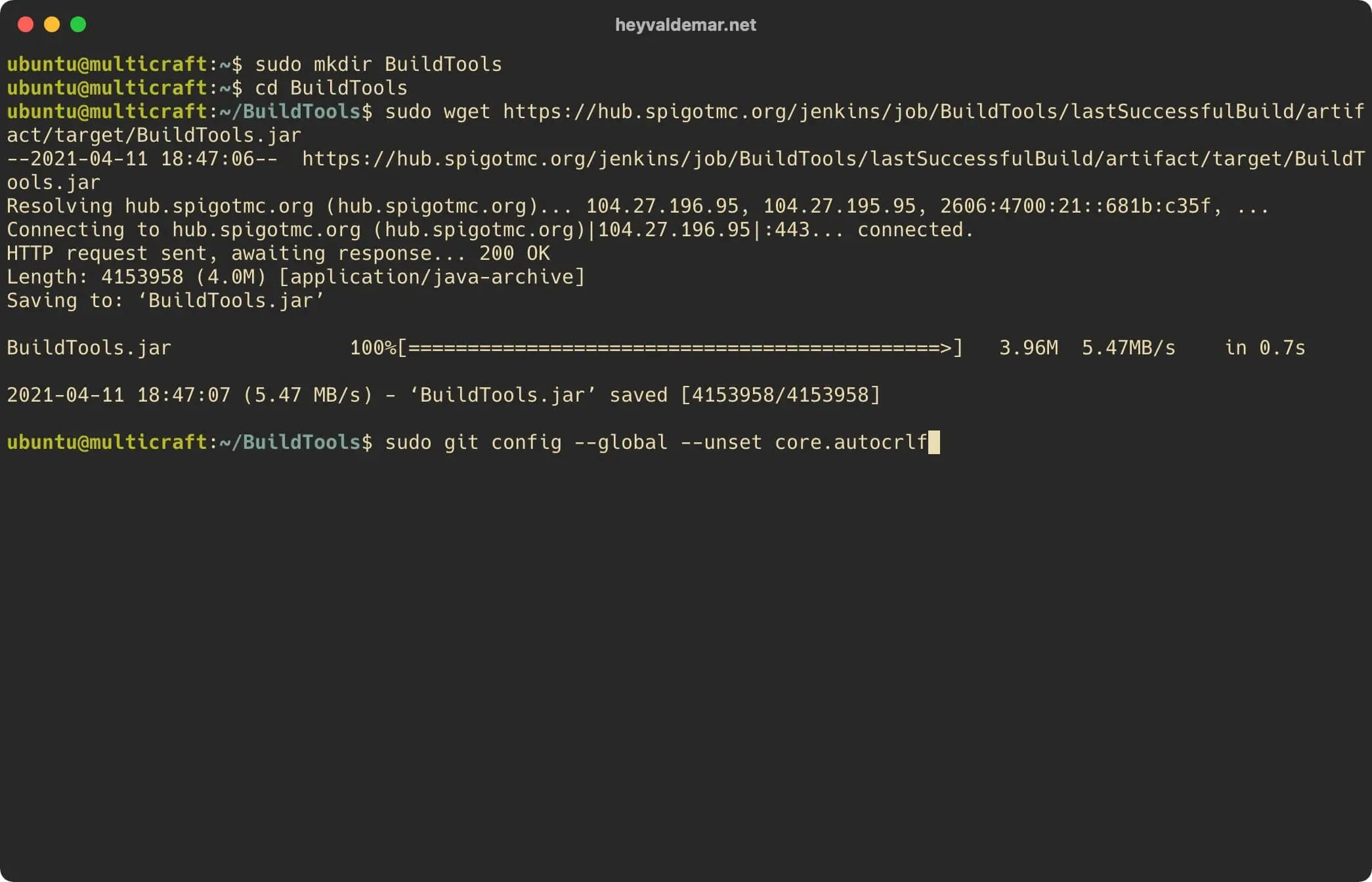
Upgrade Spigot on Ubuntu Server with Multicraft - Step 4

We start creating a new version of Spigot using the command:

Terminal window
sudo java -jar BuildTools.jar

Upgrade Spigot on Ubuntu Server with Multicraft - Step 5

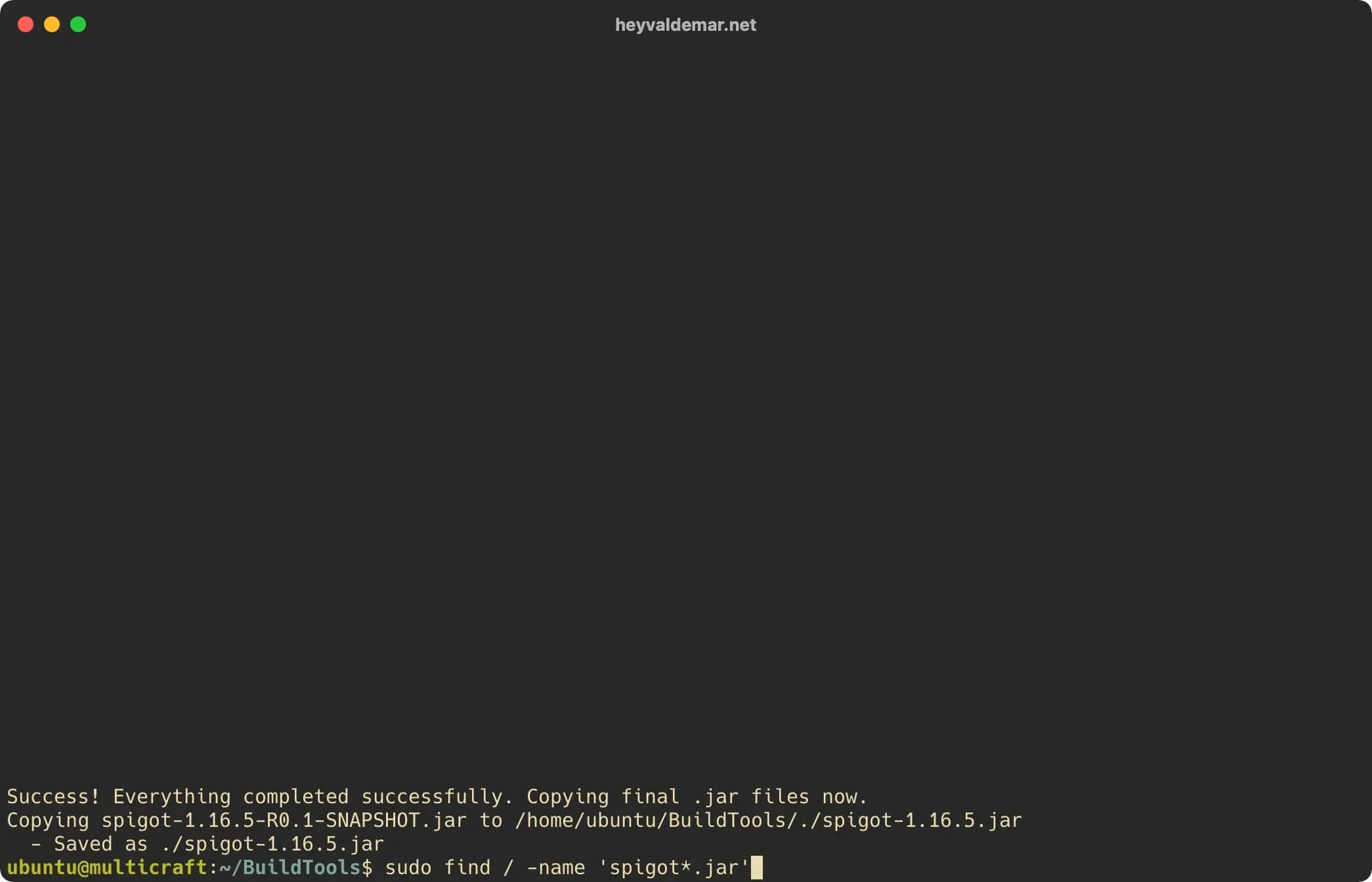
The new version of Spigot has been successfully created and is available in the previously created “BuildTools” directory.

Now you need to replace the old version of Spigot with the new one so that Spigot starts correctly with Multicraft.

Find the location of the old version of Spigot using the command:

Terminal window
sudo find / -name 'spigot*.jar'

Upgrade Spigot on Ubuntu Server with Multicraft - Step 6

The old version is in the directory:

Terminal window
/home/minecraft/multicraft/jar/

Let’s create a backup copy of the old version of Spigot using the command:

Terminal window
sudo mv /home/minecraft/multicraft/jar/spigot.jar /home/minecraft/multicraft/jar/spigot.jar.old
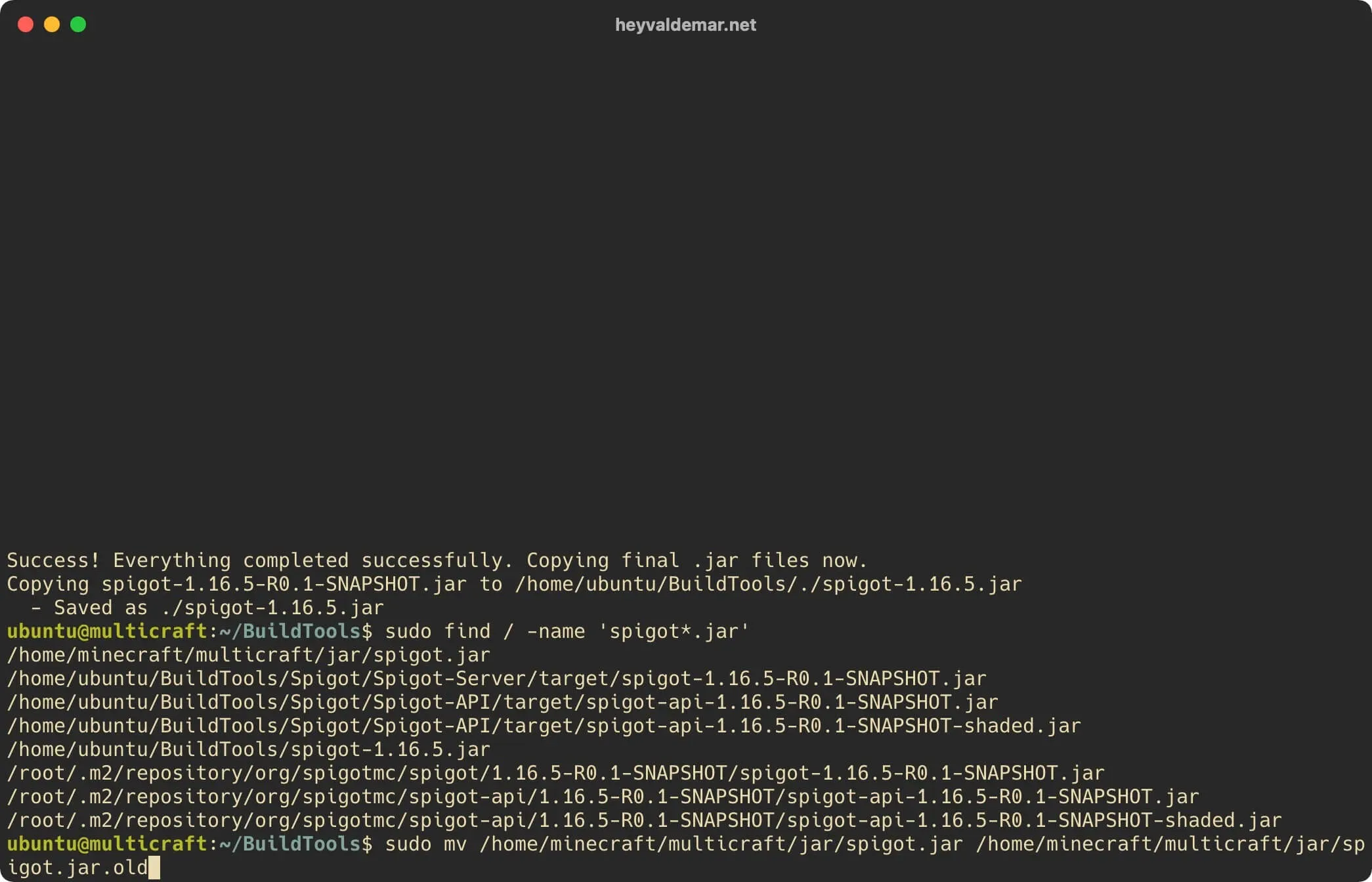
Upgrade Spigot on Ubuntu Server with Multicraft - Step 7

Let’s copy the new version of Spigot to the place of the old version using the command:

Terminal window
sudo cp /home/ubuntu/BuildTools/spigot-* /home/minecraft/multicraft/jar/spigot.jar
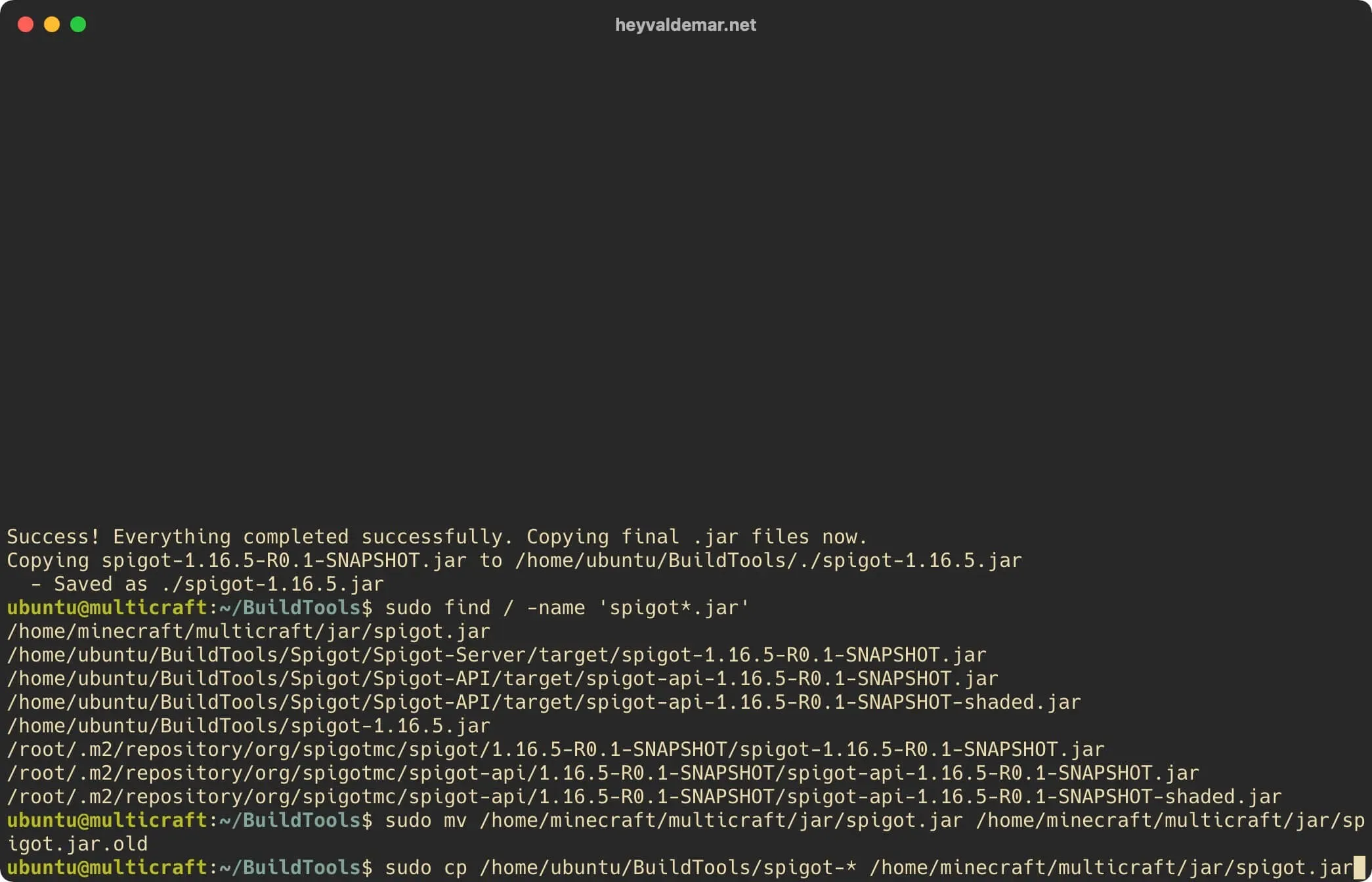
Upgrade Spigot on Ubuntu Server with Multicraft - Step 8

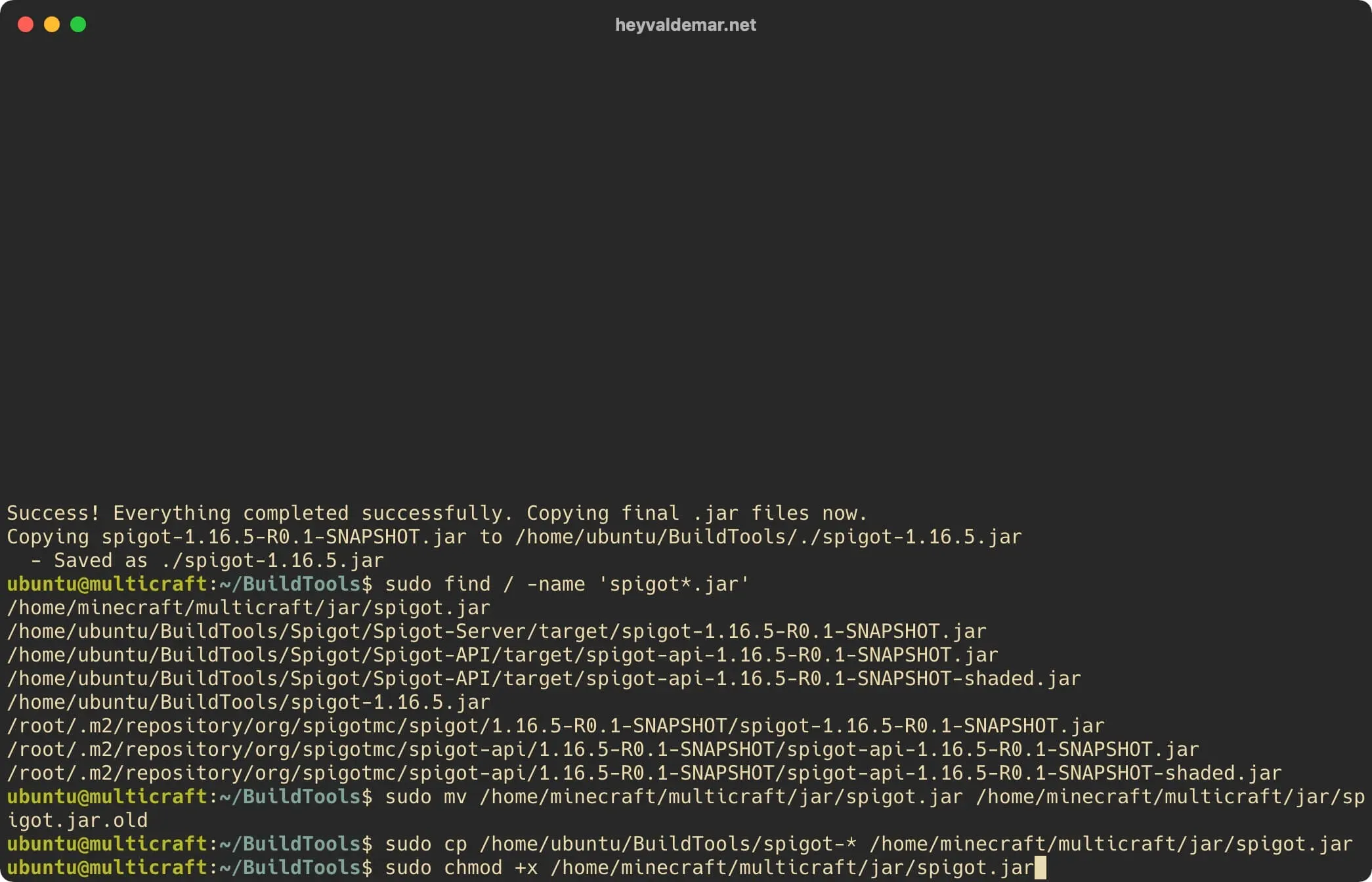
Let’s enable execution of the “spigot.jar” file using the command:

Terminal window
sudo chmod +x /home/minecraft/multicraft/jar/spigot.jar
Upgrade Spigot on Ubuntu Server with Multicraft - Step 9

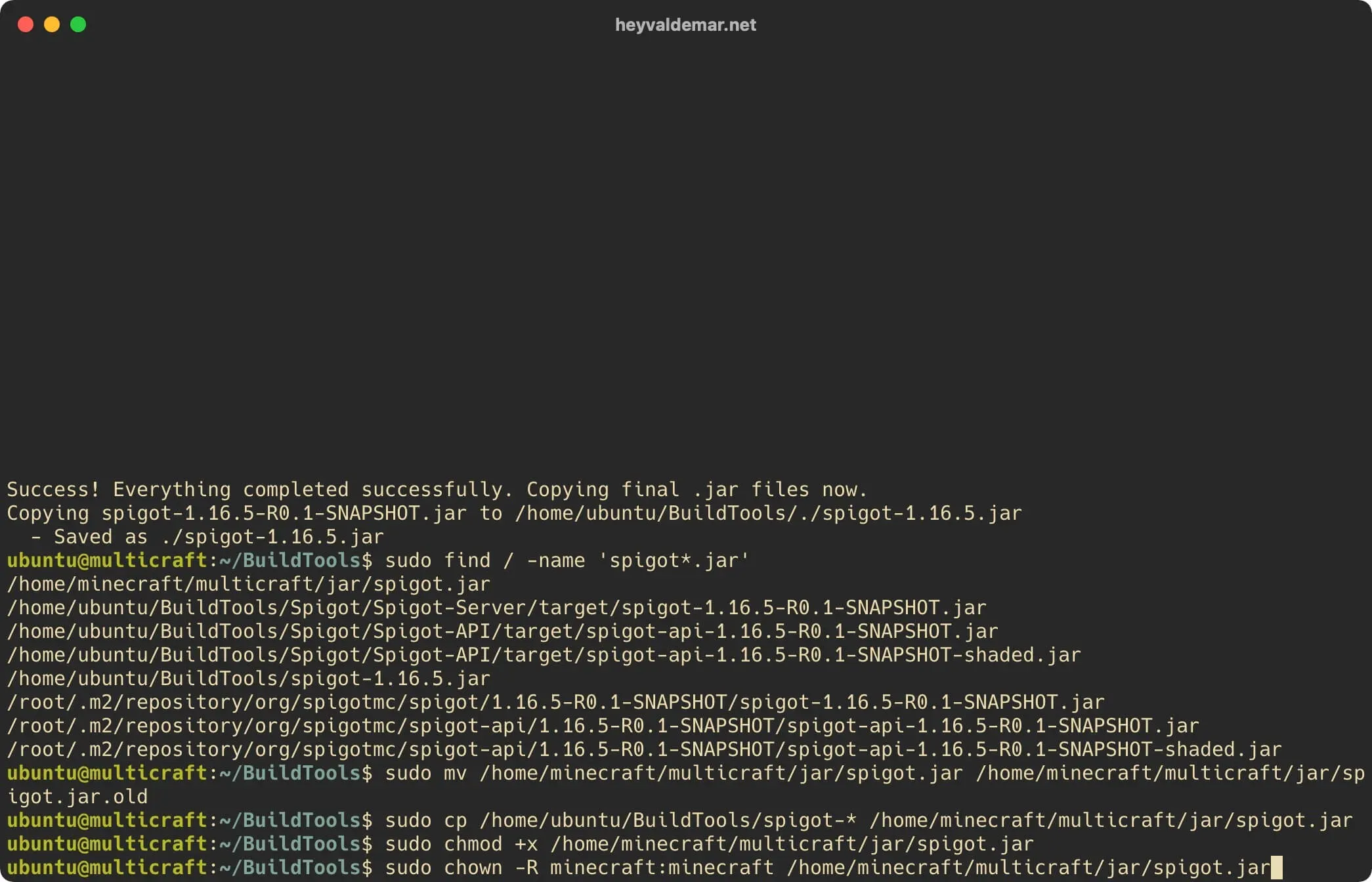
Let’s adjust the owner and group for the “spigot.jar” file using the command:

Terminal window
sudo chown -R minecraft:minecraft /home/minecraft/multicraft/jar/spigot.jar
NOTE

By default Multicraft runs as “minecraft” username. Therefore, the owner of the new version of Spigot must be the user “minecraft”.
Upgrade Spigot on Ubuntu Server with Multicraft - Step 10

The Spigot update has been successfully completed and you can now correctly launch the modified Minecraft server using Multicraft.

NOTE

For a step-by-step guide on starting a Minecraft server with Multicraft, see my tutorial: Run a Minecraft Server with Multicraft.


Vladimir Mikhalev

Docker Captain  ·  CNCF Ambassador  ·  IBM Champion

The Verdict — production-tested analysis on YouTube.

The Verdict

Inconvenient truths about shipping in the AI era

Container security, platform engineering, and the agentic shift — tested in production, argued without the hype. The verdict reaches your inbox the moment there's one worth sending.

Related Posts

Same category
  1. 1
    Recovering a Corrupt Exchange Database with Stellar Repair — Real-World Lab Test
    SysAdmin & IT Pro · We deliberately broke an Exchange 2019 server to test Stellar Repair on a dirty-shutdown EDB file. The recovery process, lab setup, and lessons learned.
  2. 2
    Terminal, Shell, Command Line, Prompt: Four Words, Four Things
    SysAdmin & IT Pro · The terminal is the window, the shell runs your commands, the prompt says it is ready, the command line is the idea. Plain definitions, examples, a cheat sheet.
  3. 3
    Install Ubuntu Server 22.04 LTS
    SysAdmin & IT Pro · Step-by-step guide to install Ubuntu Server 22.04 LTS. Covers language, disk setup, OpenSSH, user creation, and system configuration for beginners.
  4. 4
    Install OTRS on Ubuntu Server
    SysAdmin & IT Pro · Guide to installing OTRS Community Edition on Ubuntu Server — configure PostgreSQL, Apache, and SSL with Let's Encrypt, and launch OTRS securely.

Random Posts

Random
  1. 1
    Install Homebox with Docker Compose, Traefik and Let's Encrypt
    Self-Hosting · Homebox home inventory behind Traefik with Let's Encrypt certificates: the Docker networks, the compose file from my repository, one command, first login.
  2. 2
    10 Real Terraform Interview Questions (and Expert Answers!) — 2025 DevOps Guide
    DevOps & Cloud · Ace your Terraform interview with 10 real questions, expert answers, and best practices on state, drift, modules, and security.
  3. 3
    Machine Learning and Deep Learning Courses on YouTube
    AI & MLOps · Explore the best free YouTube courses in machine learning and deep learning—from beginner-friendly foundations to advanced topics like NLP, CV, and MLOps.
  4. 4
    Install OpenJDK on Ubuntu Server
    SysAdmin & IT Pro · Step-by-step guide to installing OpenJDK on Ubuntu Server. Learn how to configure Java, set JAVA_HOME, and verify your environment for Java development.
Upgrade Spigot on Ubuntu Server with Multicraft
https://heyvaldemar.com/upgrade-spigot-on-ubuntu-server-with-multicraft/
Author
Vladimir Mikhalev
Published
2021-04-05
Updated
2026-06-11
License
CC BY-NC-SA 4.0