
Run a Script When macOS Boots: launchd First, cron as the Fallback
By Vladimir Mikhalev · Docker Captain · CNCF Ambassador · IBM Champion
The 2021 version of this guide put the script into root’s crontab with @reboot. That still works on macOS 26, and it is still the wrong tool: cron gives you no log, a bare PATH, and no say in whether the job runs before or after login. launchd is what starts every service on macOS, and it answers all three. This version shows launchd first and keeps cron at the end, screenshots and all, for the cases where it is enough.
Two decisions before you type anything. A LaunchDaemon lives in /Library/LaunchDaemons, runs as root, and starts at boot, with nobody logged in. A LaunchAgent lives in ~/Library/LaunchAgents, runs as you, and starts when you log in. “When macOS boots” usually means the first one; a script that needs your keychain, your mounted volumes or a window means the second.
Step 1: Write the script
We go into the system under an account with administrator rights and start the terminal emulator.
NOTEThe screenshots are from the original run in iTerm2. Any terminal does the same.
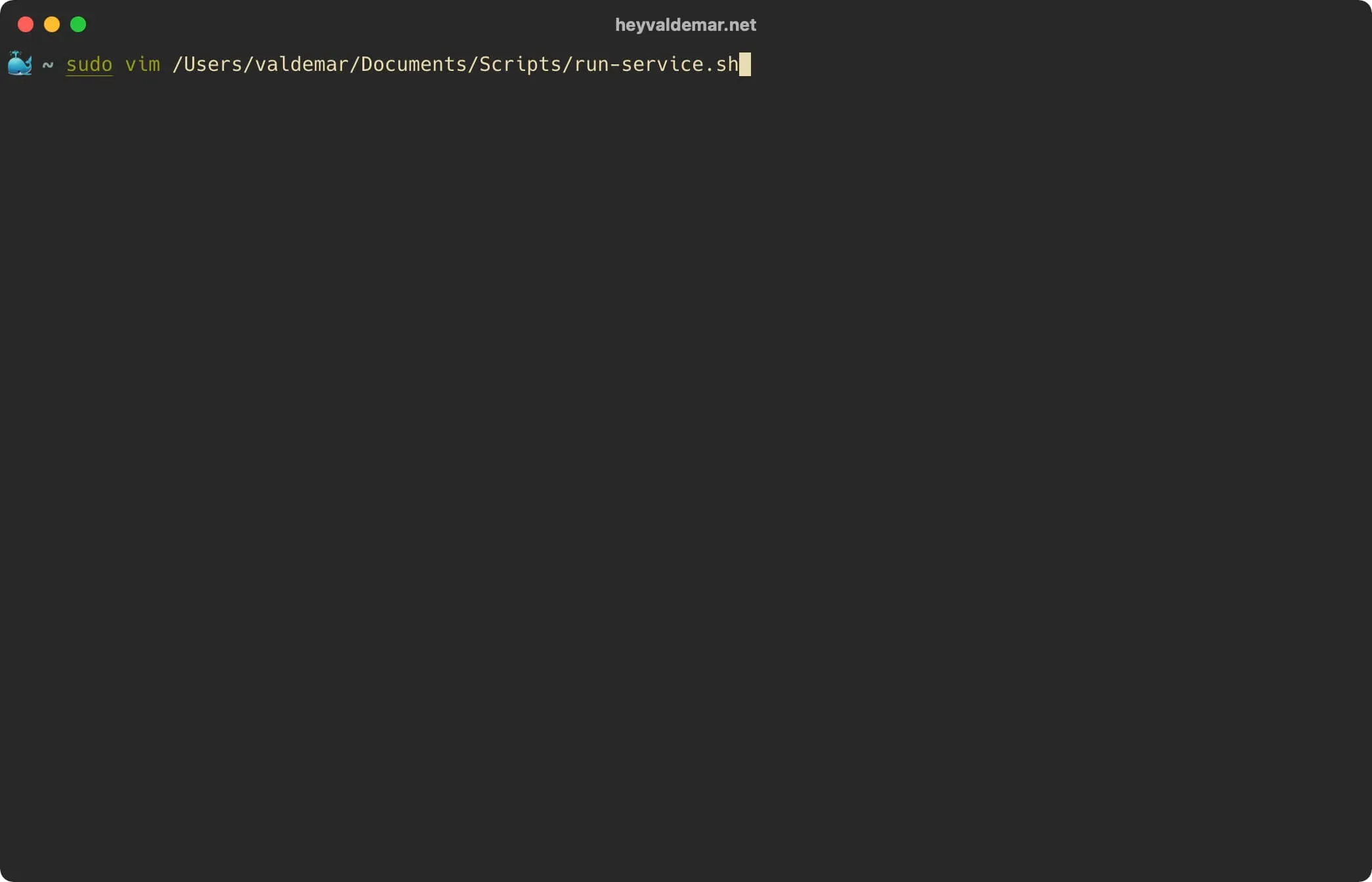
Create the script that will hold the commands you want to run at boot:
vim /Users/valdemar/Documents/Scripts/run-service.shNOTEIn this tutorial, a script called “run-service.sh” is created in the user’s home directory. You can create a script in any convenient place for permanent storage. For a LaunchDaemon, a folder root can read is enough; it does not have to be your home.
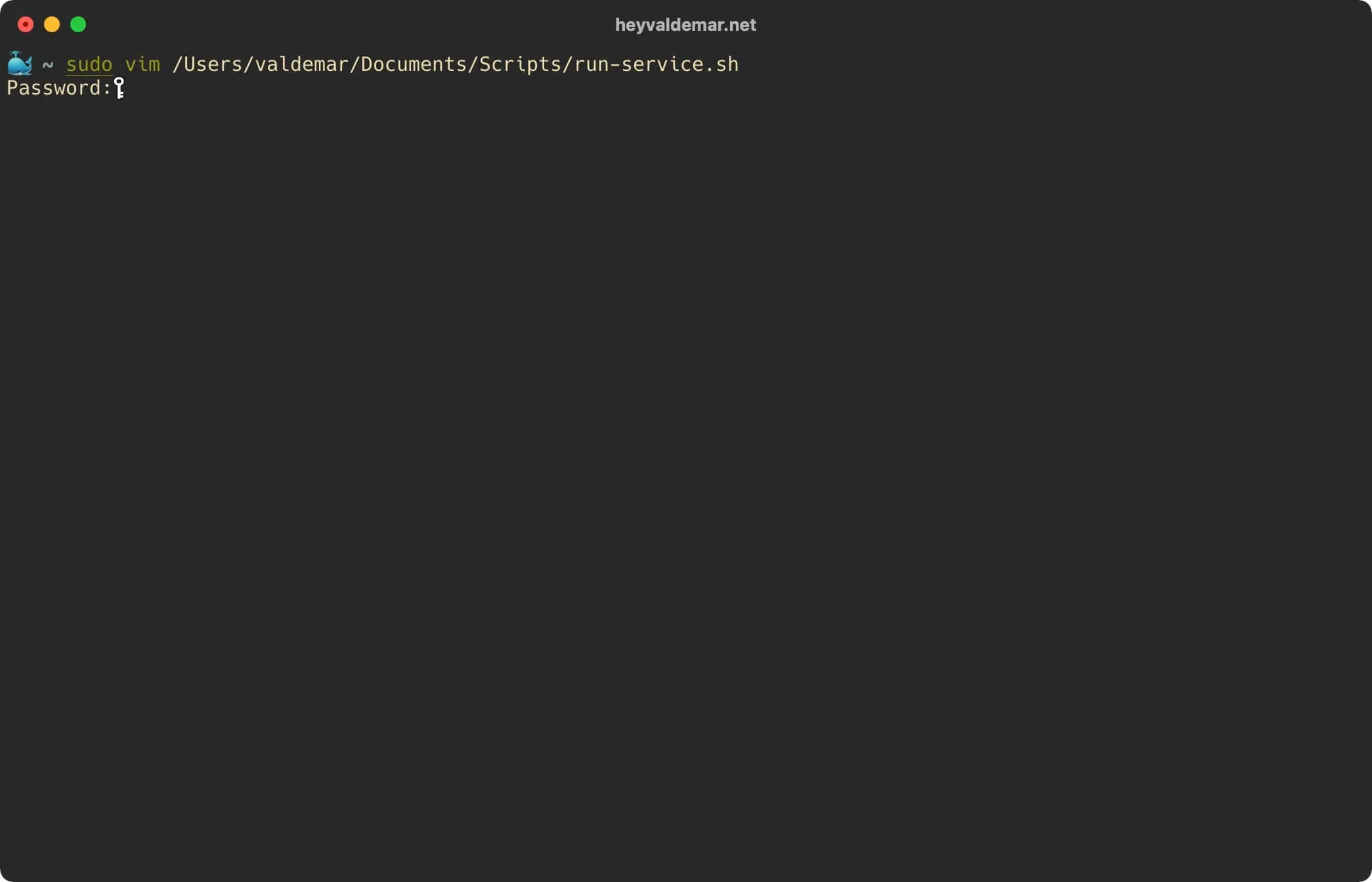
Hit the “i” button to go into edit mode, then add the commands you need to execute when macOS boots. Start the file with a shebang line, because launchd runs the file directly:
#!/bin/sh# commands to run at boot go below 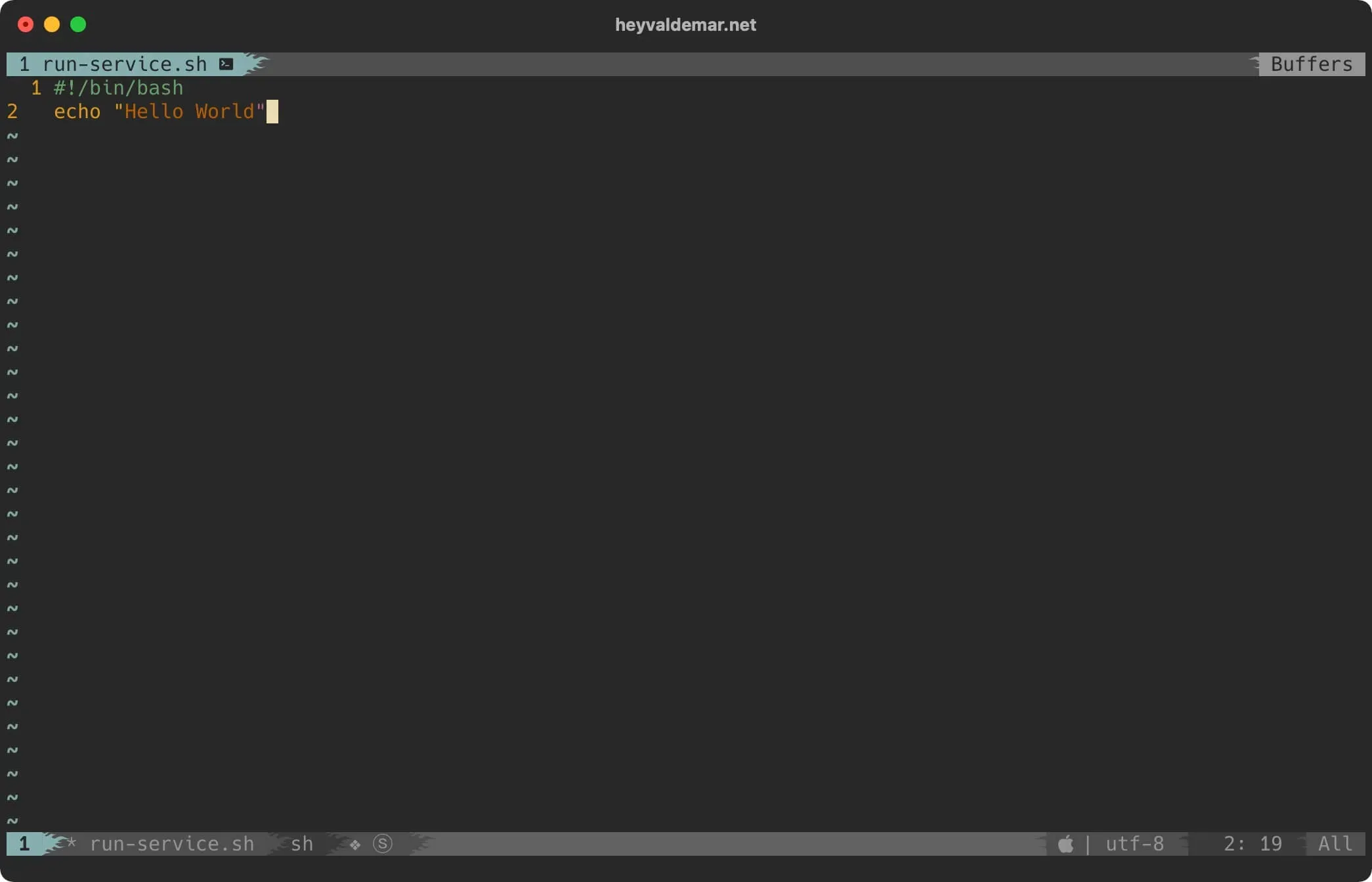
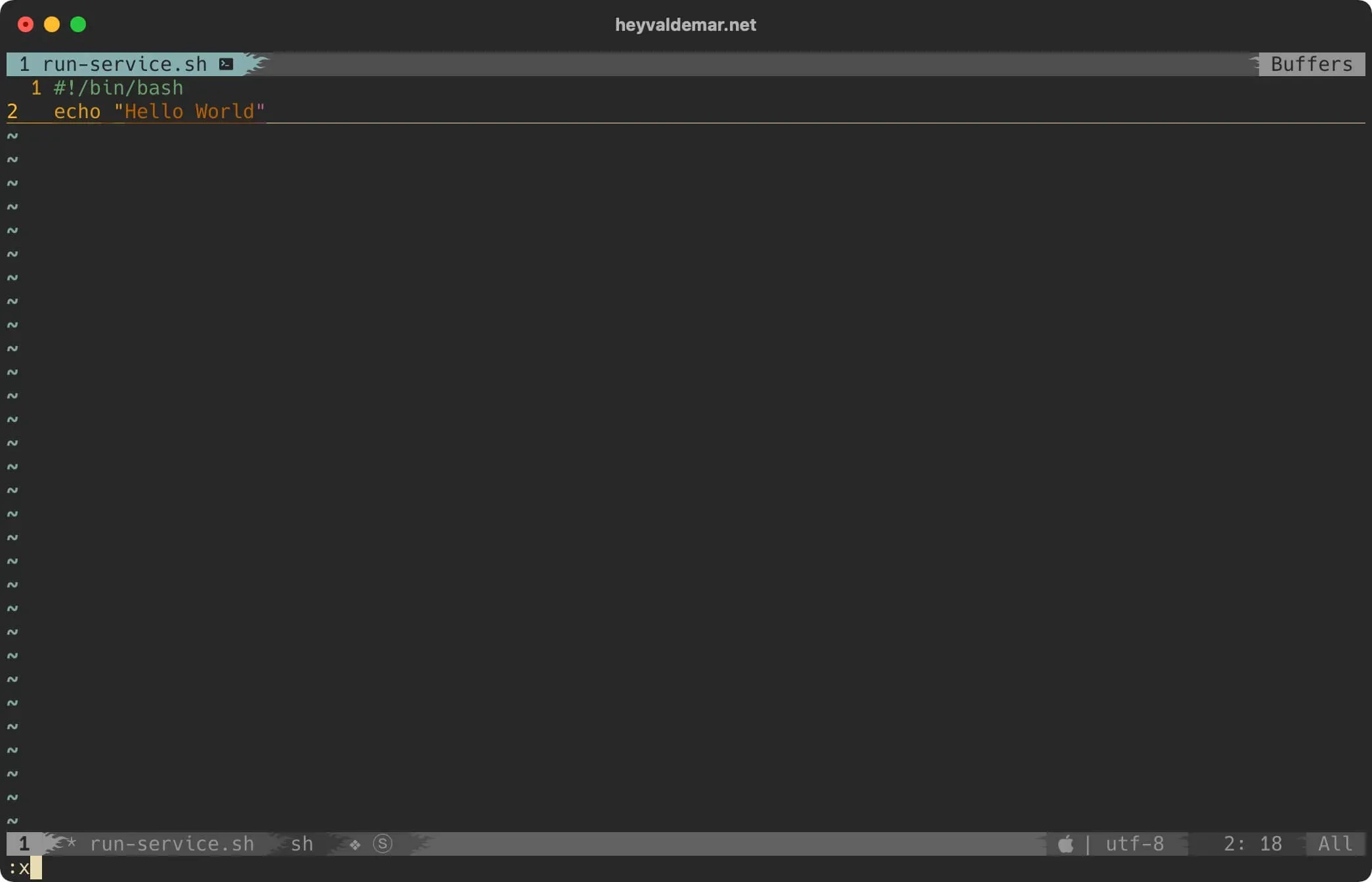
Now press the “Esc” button to exit edit mode, then type "
Let’s enable the execution of the file “run-service.sh” using the command:
chmod +x /Users/valdemar/Documents/Scripts/run-service.sh 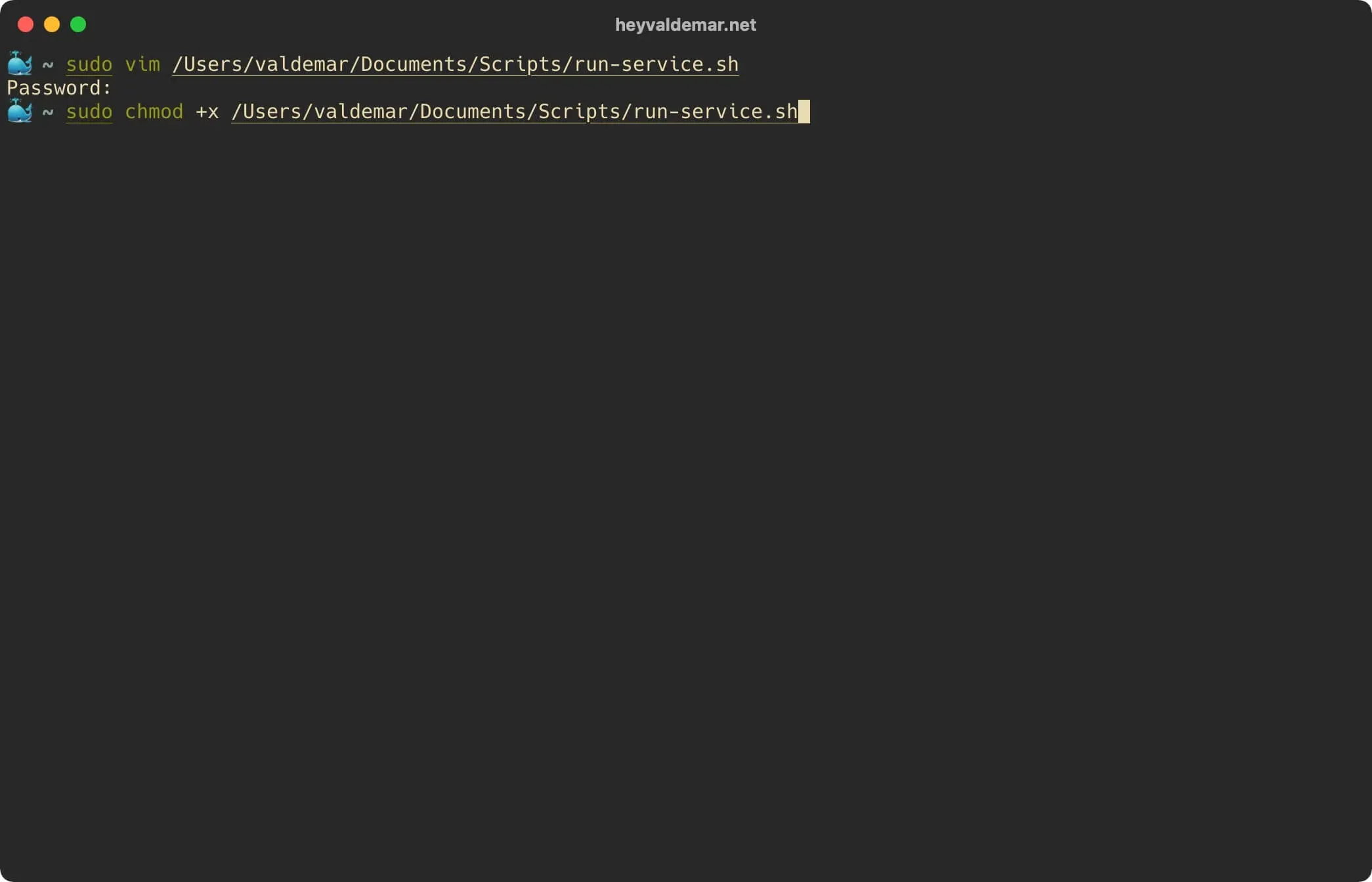
Step 2: Describe the job to launchd
launchd reads a property list. Two keys are required, Label and ProgramArguments; the rest below is what makes the job useful. Create the file:
sudo vim /Library/LaunchDaemons/com.heyvaldemar.run-service.plist<?xml version="1.0" encoding="UTF-8"?><!DOCTYPE plist PUBLIC "-//Apple//DTD PLIST 1.0//EN" "http://www.apple.com/DTDs/PropertyList-1.0.dtd"><plist version="1.0"><dict> <key>Label</key> <string>com.heyvaldemar.run-service</string> <key>ProgramArguments</key> <array> <string>/Users/valdemar/Documents/Scripts/run-service.sh</string> </array> <key>RunAtLoad</key> <true/> <key>StandardOutPath</key> <string>/var/log/run-service.log</string> <key>StandardErrorPath</key> <string>/var/log/run-service.log</string></dict></plist>Label is the job’s name, unique on the machine; reverse-DNS is the convention. ProgramArguments is the command and its arguments, one string each. RunAtLoad runs the job once when launchd loads it, which at boot means right after launchd itself; the man page warns against using it for jobs that could start on demand instead, and a boot script is the case where “on demand” is boot. StandardOutPath and StandardErrorPath send the script’s output to a file; without them, output goes nowhere and a failing script fails in silence. Add WorkingDirectory if the script expects to start in a particular folder.
Step 3: Set the ownership, then load it
Apple’s guide for launchd jobs says daemons “must be owned by the root user” and “must not be group writable or world writable”. Apple’s own daemons in /System/Library/LaunchDaemons are root
sudo chown root:wheel /Library/LaunchDaemons/com.heyvaldemar.run-service.plistsudo chmod 644 /Library/LaunchDaemons/com.heyvaldemar.run-service.plistLoad the job into the system domain. This runs it now, because of RunAtLoad, and launchd will load it again at every boot:
sudo launchctl bootstrap system /Library/LaunchDaemons/com.heyvaldemar.run-service.plistCheck that launchd knows the job and see its last exit status:
sudo launchctl print system/com.heyvaldemar.run-serviceRead the output of the script:
cat /var/log/run-service.logTo stop the job and remove it from launchd, the opposite of bootstrap is bootout:
sudo launchctl bootout system /Library/LaunchDaemons/com.heyvaldemar.run-service.plistDelete the plist afterwards, or launchd loads it again at the next boot.
NOTE
launchctl loadandlaunchctl unloadstill work, but Apple’s launchctl man page lists them under the legacy subcommands.bootstrapandbootoutare the current forms, and they take a domain:systemfor daemons,gui/<uid>for agents.
The same job as a LaunchAgent
If the script should run when you log in, as you, put the same plist in ~/Library/LaunchAgents, owned by you, and point the log at your home:
mkdir -p ~/Library/LaunchAgentsvim ~/Library/LaunchAgents/com.heyvaldemar.run-service.plistChange the two log paths to /Users/valdemar/Library/Logs/run-service.log, then load it into your own GUI domain. id -u supplies your user ID:
launchctl bootstrap gui/$(id -u) ~/Library/LaunchAgents/com.heyvaldemar.run-service.plistlaunchctl print gui/$(id -u)/com.heyvaldemar.run-serviceNo sudo anywhere: the agent runs with your rights and nothing more.
The fallback: cron and @reboot
This is the 2021 recipe. It is three commands, and it is fine for a script that only needs the system to be up: no user folders, no keychain, no window.
Open root’s crontab using the command:
sudo crontab -e 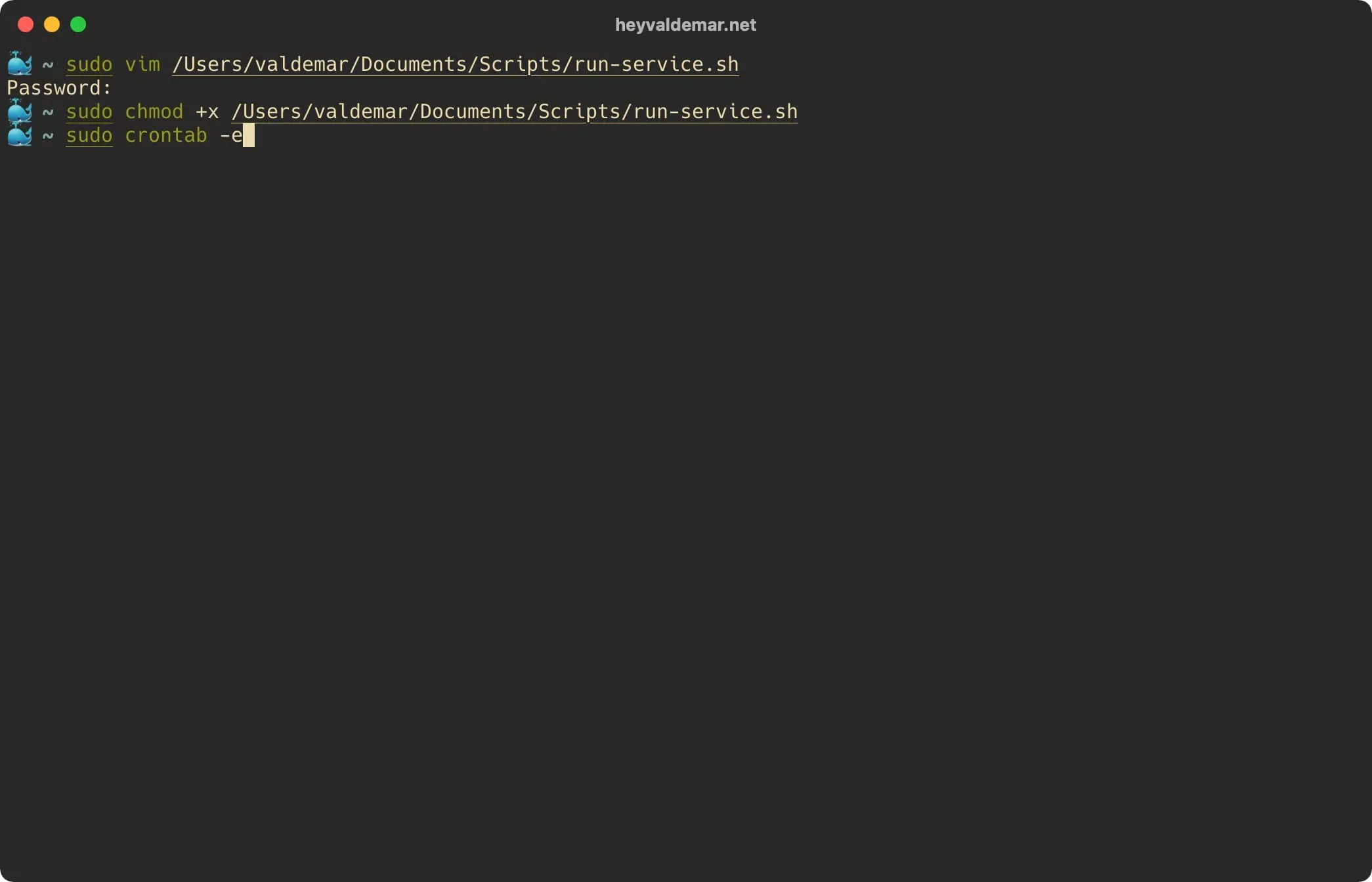
Hit the “i” button to switch to edit mode, then add a line with the “@reboot” parameter and specify the full path to the previously created script:
@reboot /Users/valdemar/Documents/Scripts/run-service.sh 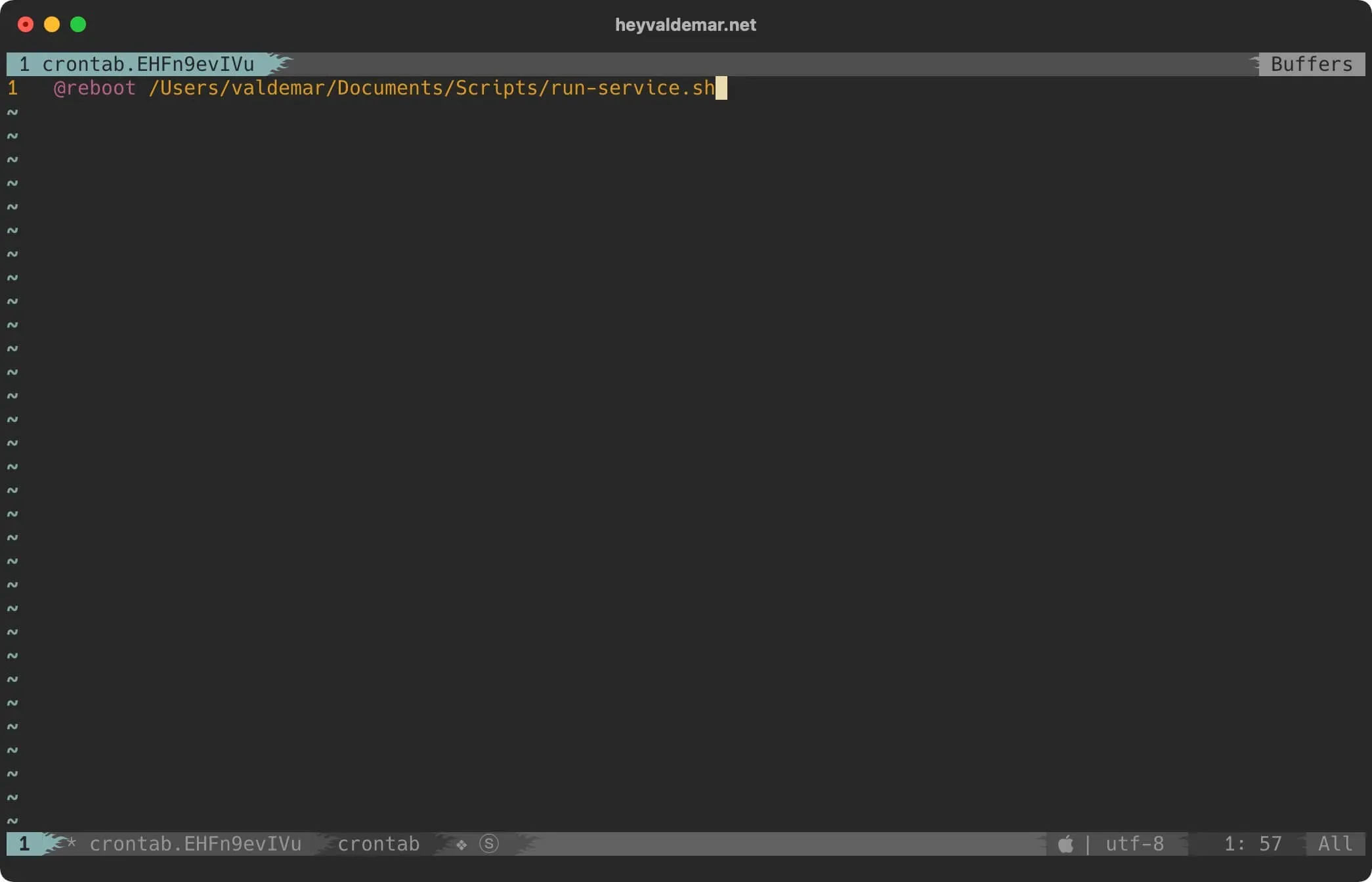
Now press the “Esc” button to exit edit mode, then type "
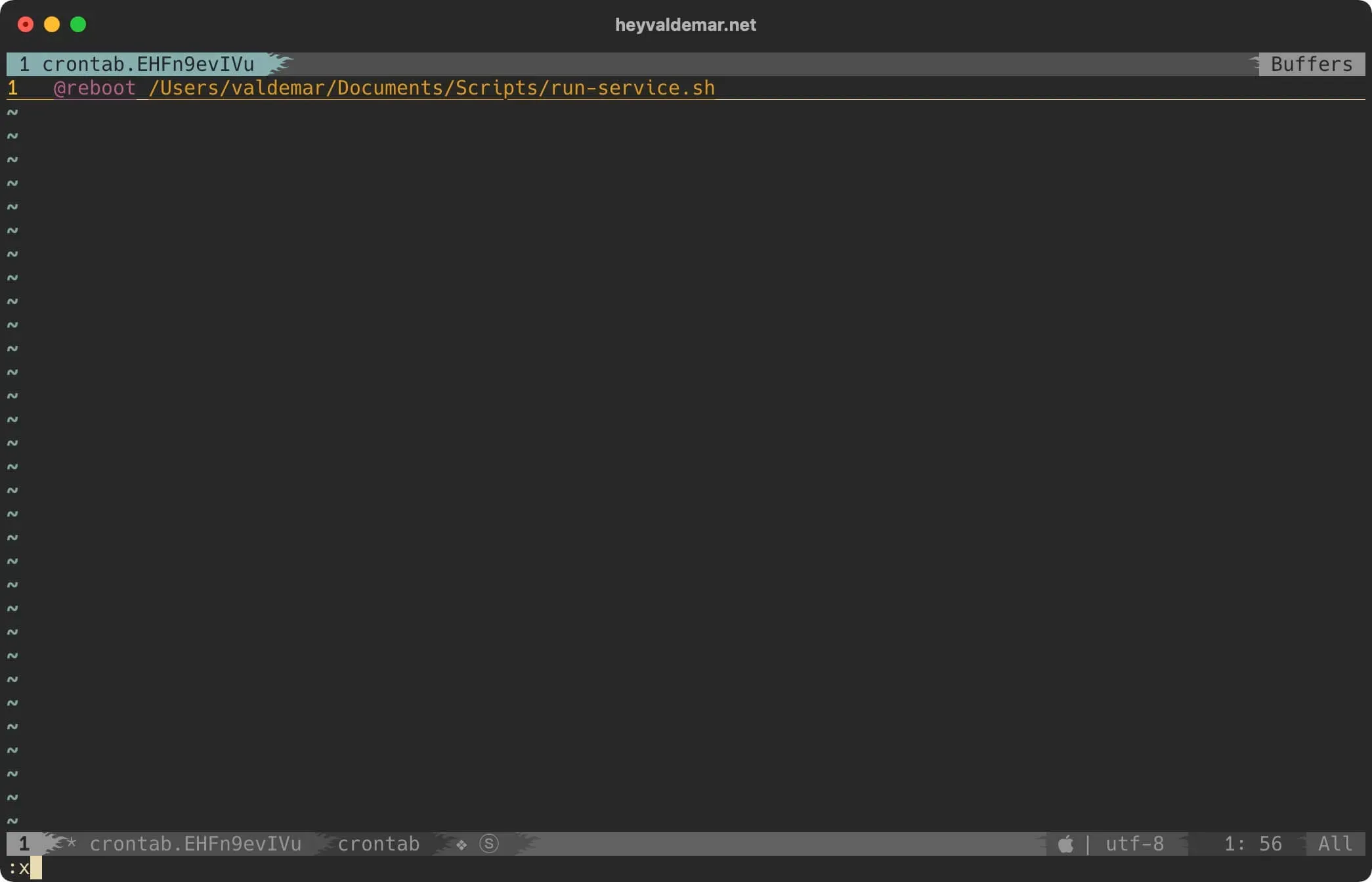
The script will now run when macOS boots, before any user logs in. What you give up: cron writes nothing to a log unless the script does it itself, it runs with a minimal PATH, so call programs by full path, and on current macOS a cron job cannot read the folders the privacy controls protect, such as Desktop, Documents and Downloads, until you add /usr/sbin/cron to Full Disk Access by hand. The launchd version has none of those surprises, which is why it comes first.