394 words
2 min read

Restore Windows Firewall Defaults: Back Up the Rules First, Then Reset

By · Docker Captain · CNCF Ambassador · IBM Champion
Cover image for the post 'Restore Windows Firewall Defaults'

This article is for those looking for a detailed and clear guide on how to restore Windows Firewall defaults.

This guide will cover several ways to restore the default Windows Firewall settings.

We go into the system under an account with administrator rights.

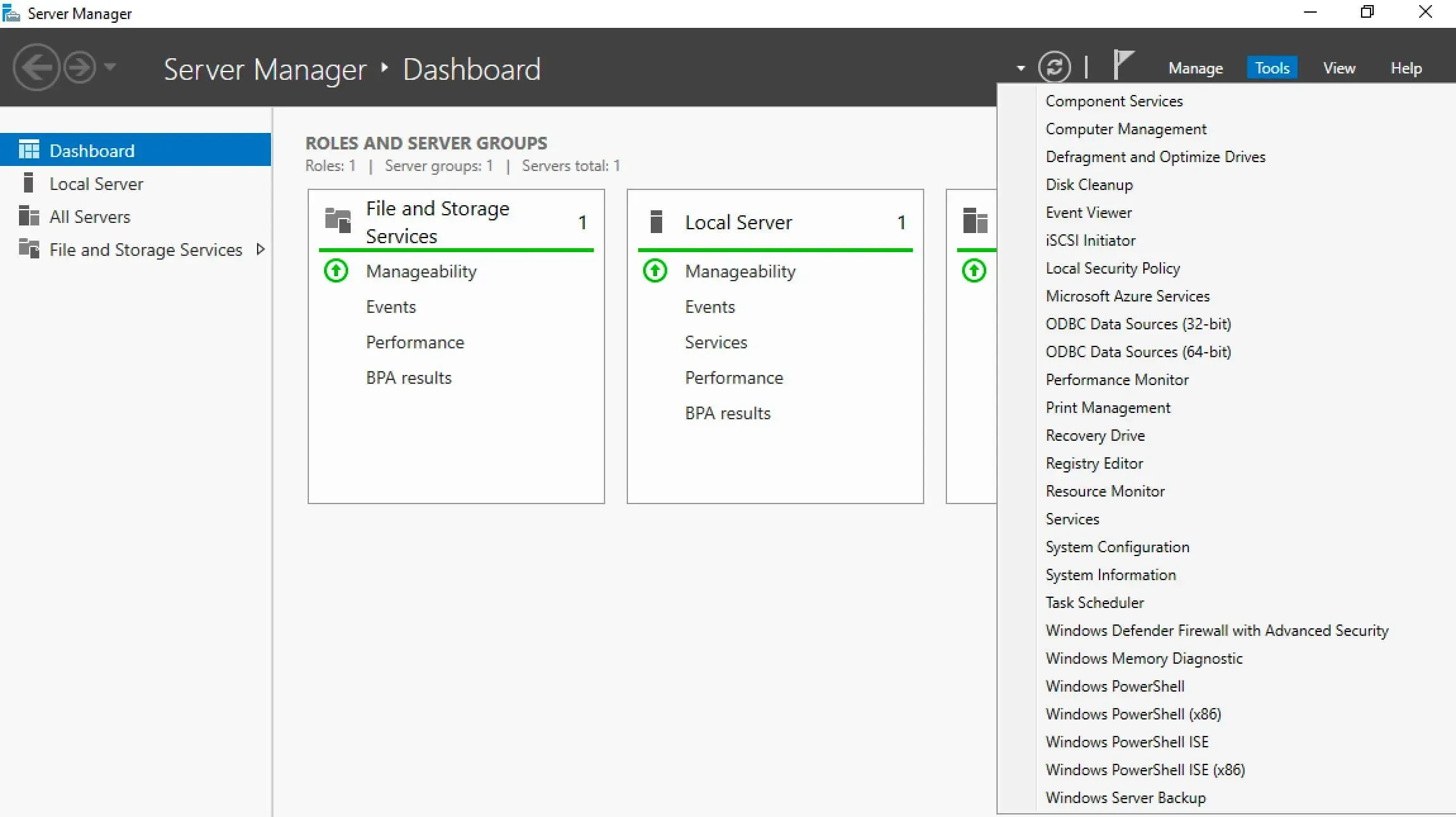
Open Server Manager, click on the “Tools” button in the upper right corner of the screen, and select “Windows Defender Firewall with Advanced Security”.
Restore Windows Firewall Defaults - Step 1

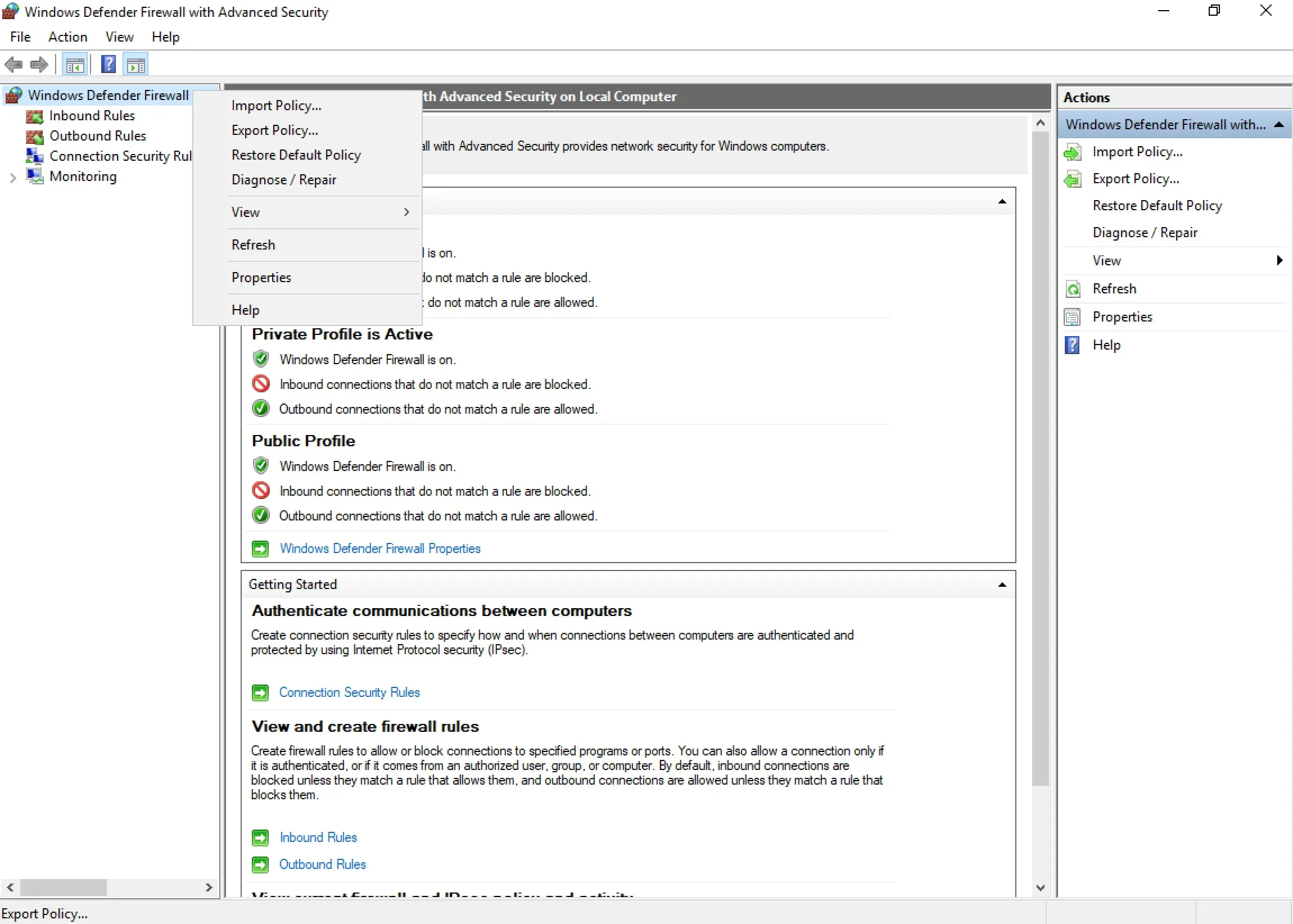
You can now export the current settings from Windows Firewall and, if necessary, return to them after restoring the default settings.

Right-click on “Windows Firewall with Advanced Security on Local Computer” and select “Export Policy”.
Restore Windows Firewall Defaults - Step 2

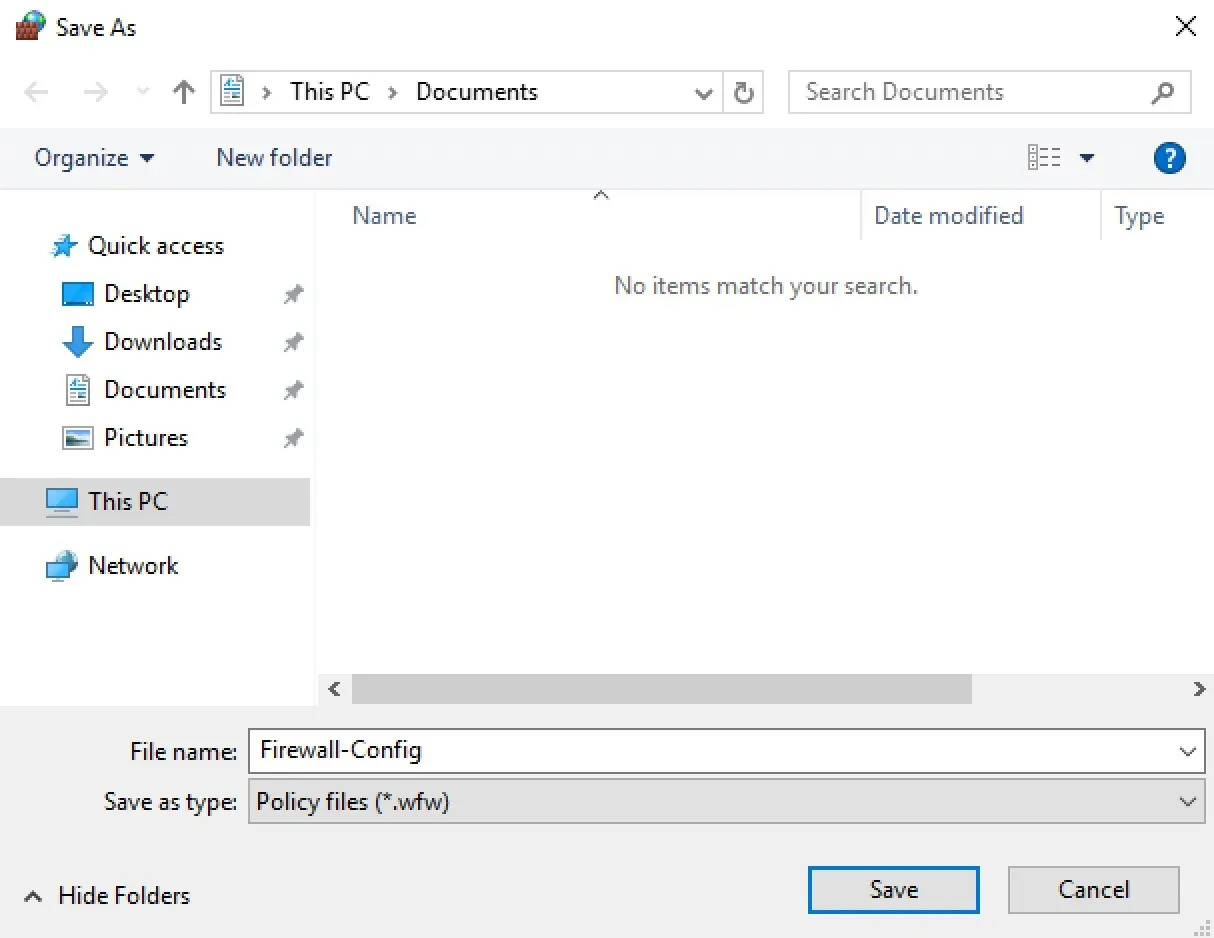
Assign a name and save the file with Windows Firewall settings.

NOTE

In this manual, the settings file will be saved in the “Documents” folder.

Click on the “Save” button.
Restore Windows Firewall Defaults - Step 3

Windows Firewall settings exported successfully.

Click on the “OK” button.
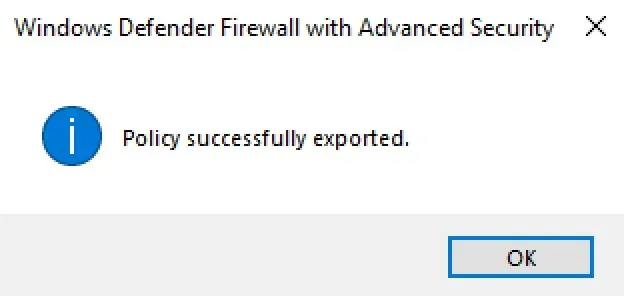
Restore Windows Firewall Defaults - Step 4

Now you can restore the default settings in Windows Firewall.

In the “Actions” section, select “Restore Default Policy”.
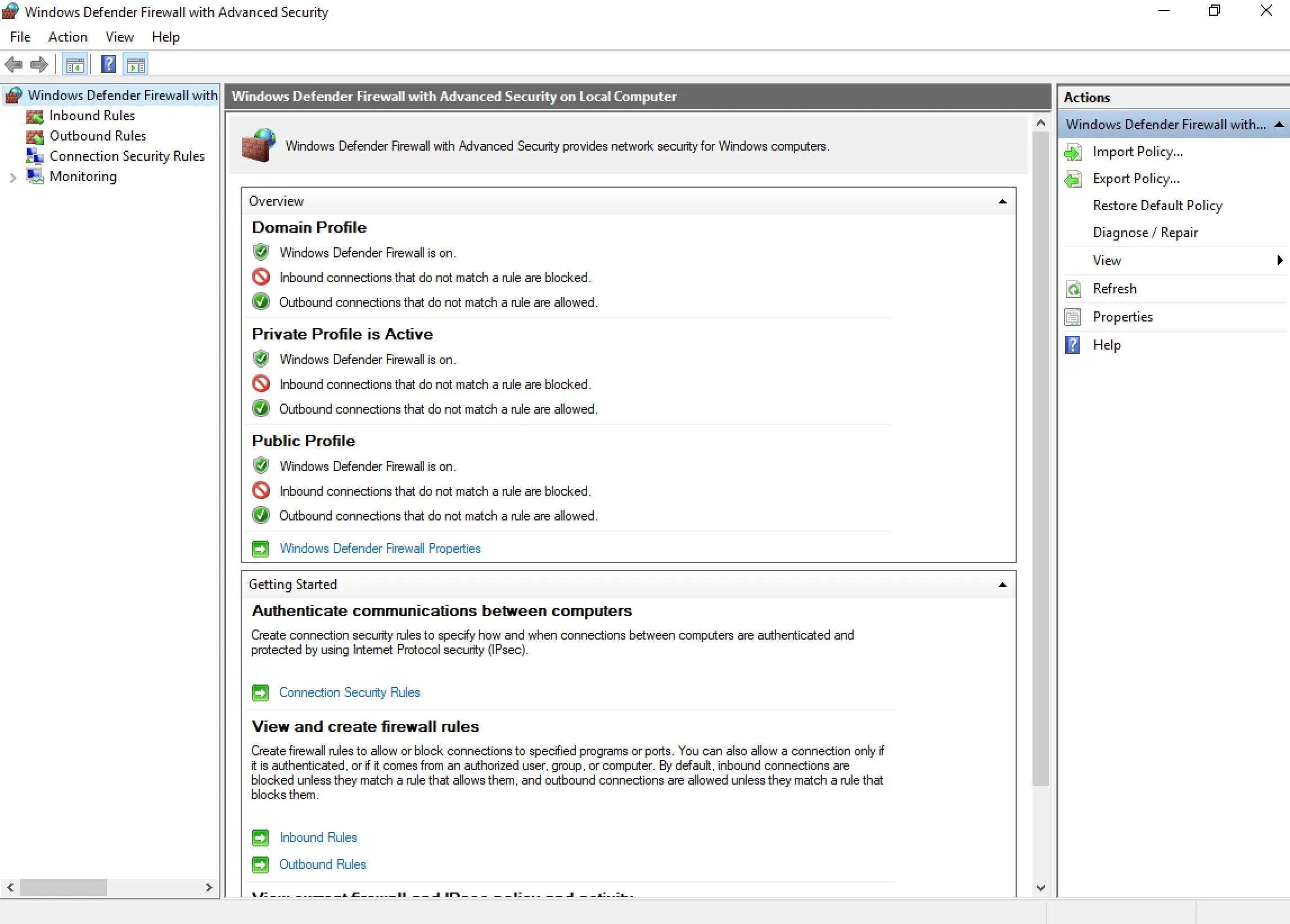
Restore Windows Firewall Defaults - Step 5

Next, you need to confirm the restoration of the default settings.

Click on the “Yes” button.
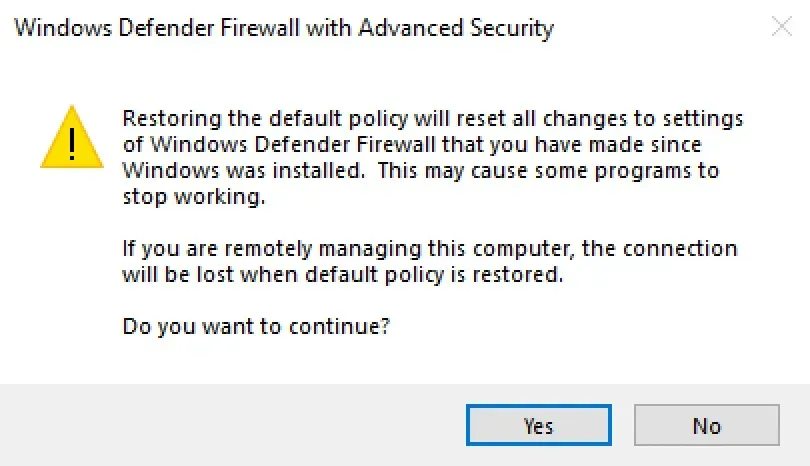
Restore Windows Firewall Defaults - Step 6

Windows Firewall defaults have been restored successfully.
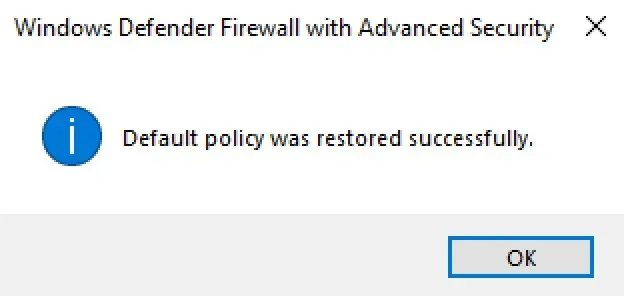
Restore Windows Firewall Defaults - Step 7

In addition, you can restore the default settings in Windows Firewall using the command line.

Press “Start”, specify “cmd” in the search bar, and select “Command Prompt”.
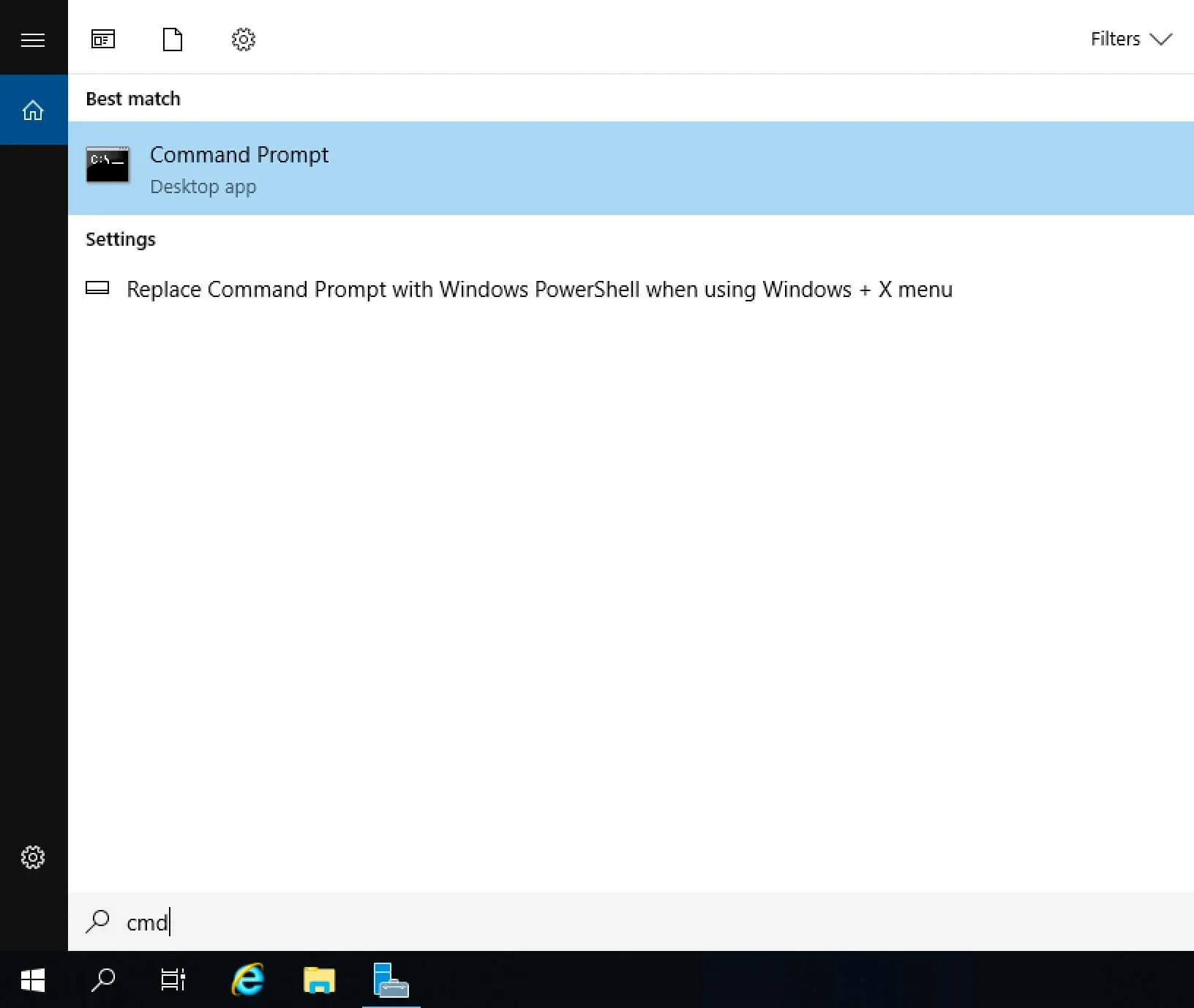
Restore Windows Firewall Defaults - Step 8

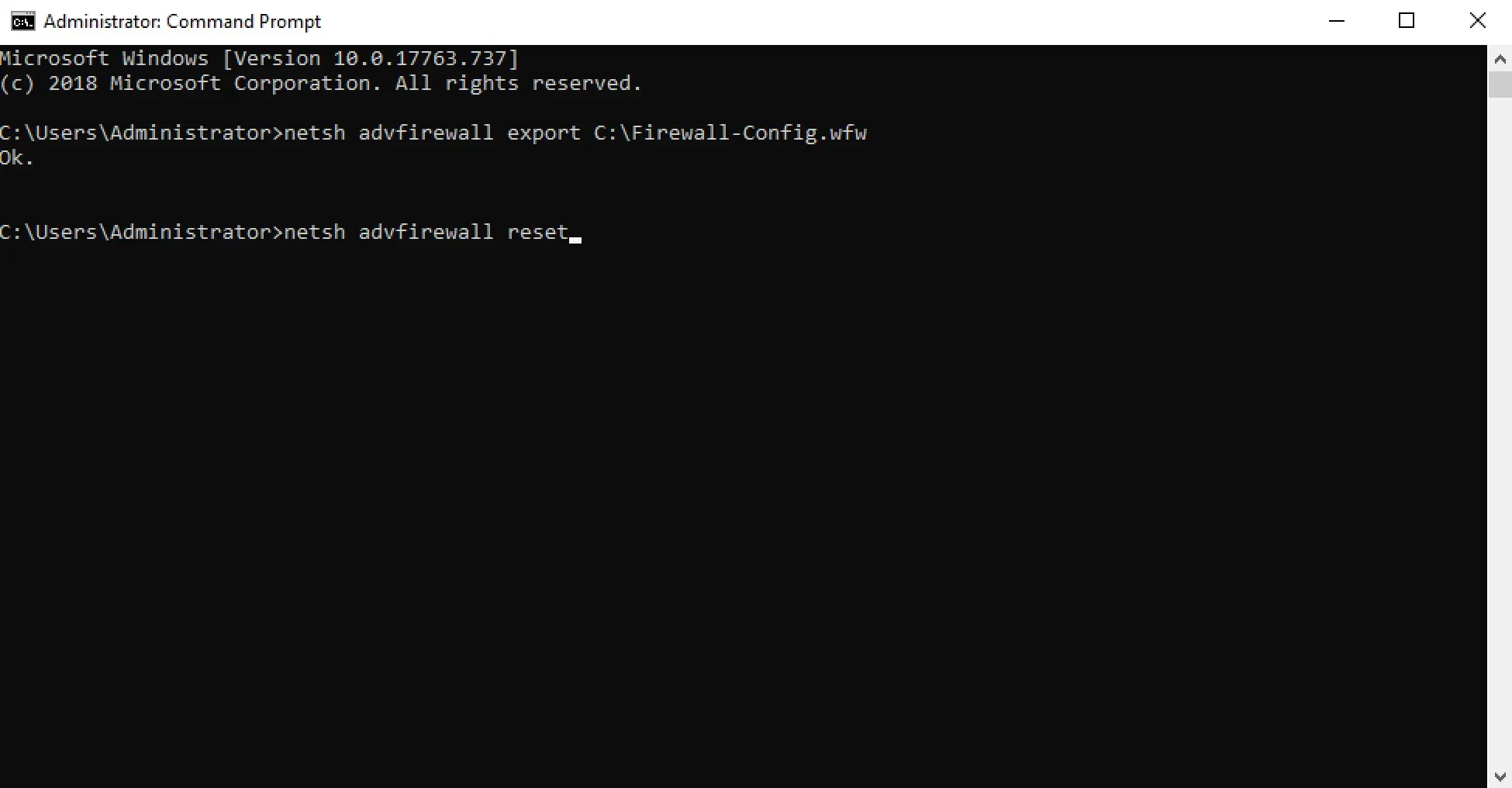
We export the current settings from Windows Firewall to return to them if necessary after restoring the default settings.

NOTE

In this manual, the configuration file will be saved to the “C” drive.

We export the current settings from Windows Firewall using the command:

Terminal window
netsh advfirewall export C:\Firewall-Config.wfw
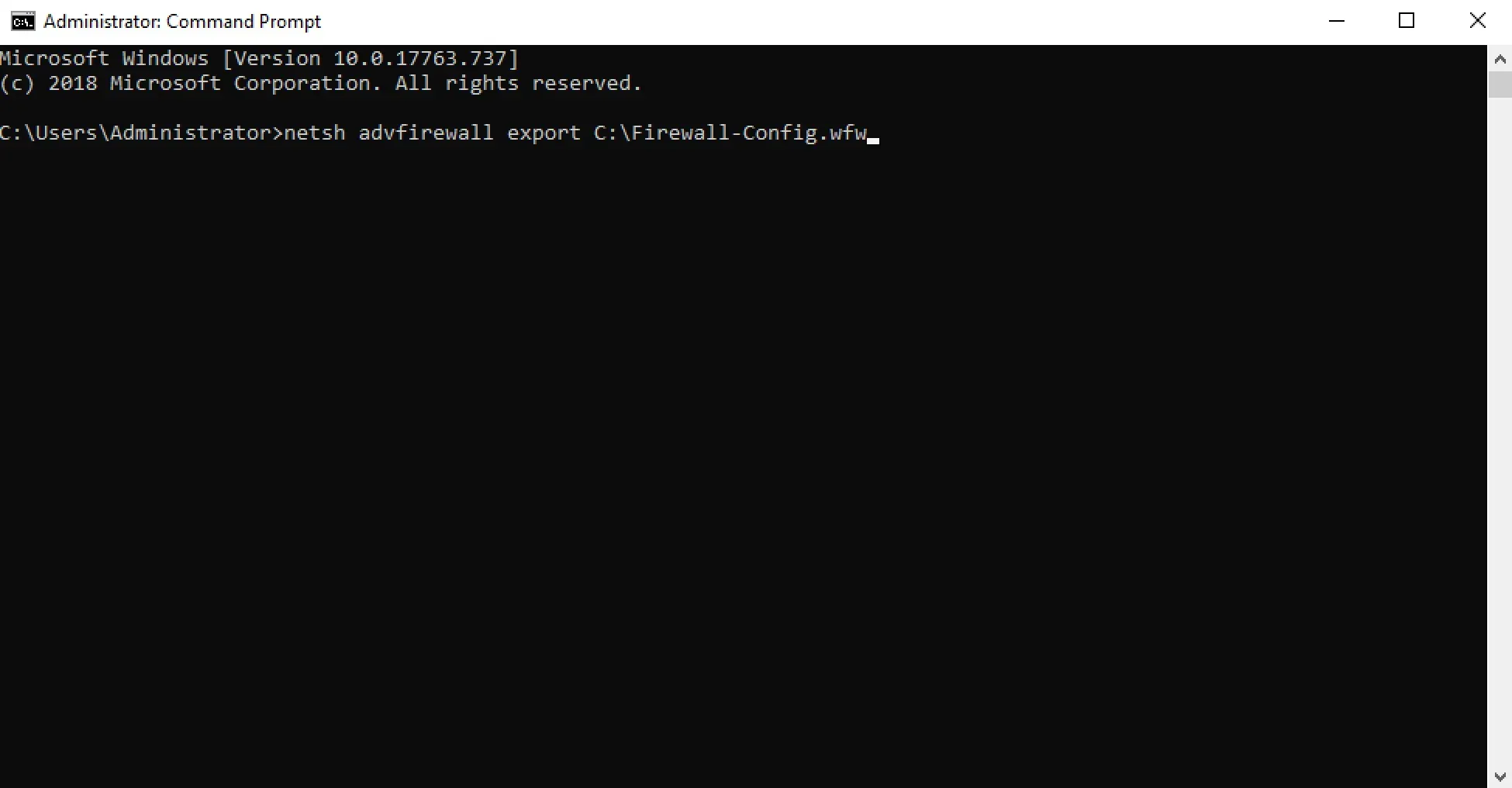
Restore Windows Firewall Defaults - Step 9

Now you can restore the default settings in Windows Firewall.

Restore the default settings in Windows Firewall using the command:

Terminal window
netsh advfirewall reset

Restore Windows Firewall Defaults - Step 10

Windows Firewall defaults have been restored successfully.
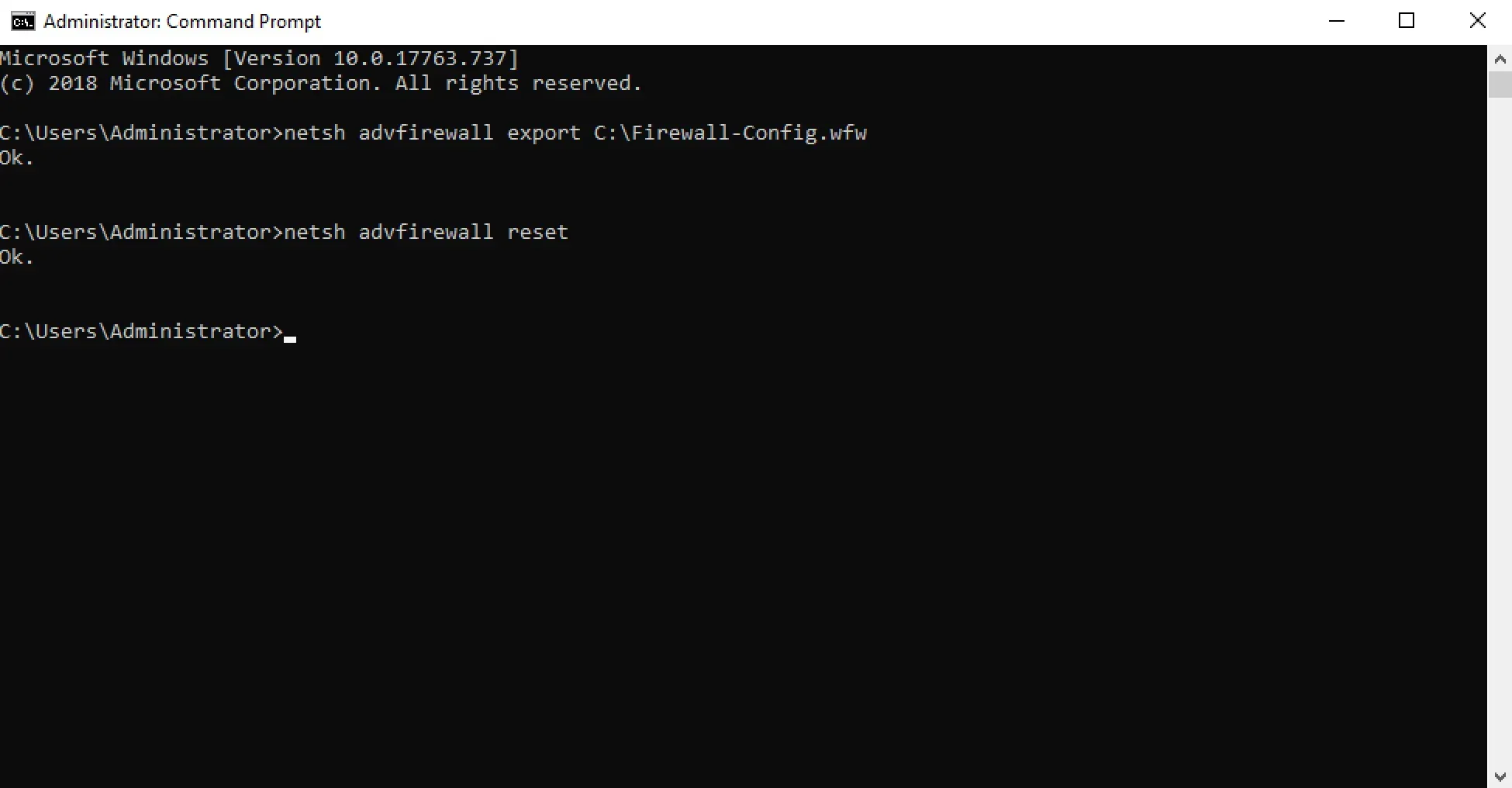
Restore Windows Firewall Defaults - Step 11

You can also restore the default settings in Windows Firewall using Windows PowerShell.

On the keyboard, press the key combination “Win” and “x” and in the menu that opens, select “Windows PowerShell (Admin)”.
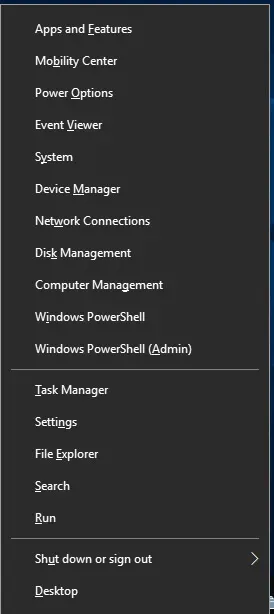
Restore Windows Firewall Defaults - Step 12

Restore the default settings in Windows Firewall using the command:

Terminal window
(New-Object -ComObject HNetCfg.FwPolicy2).RestoreLocalFirewallDefaults()
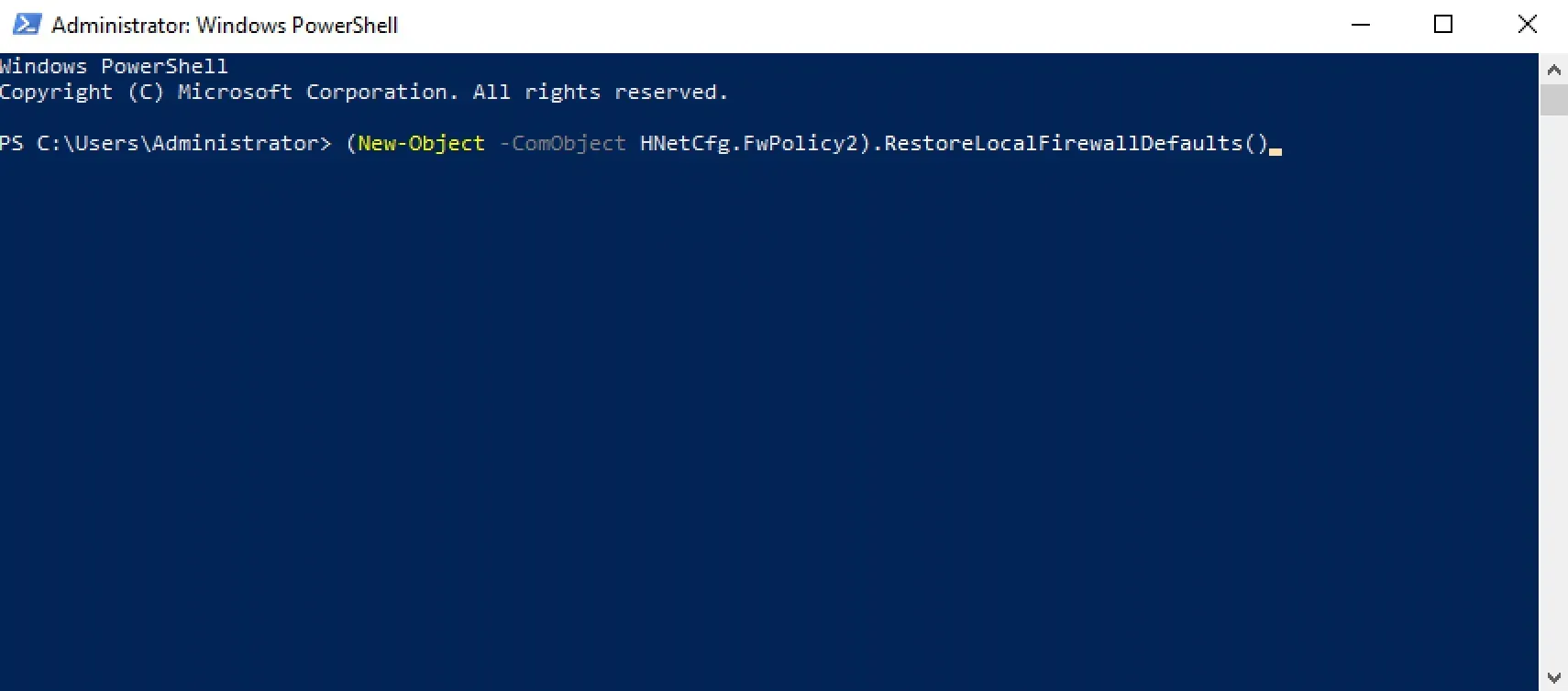
Restore Windows Firewall Defaults - Step 13

Windows Firewall defaults have been restored successfully.
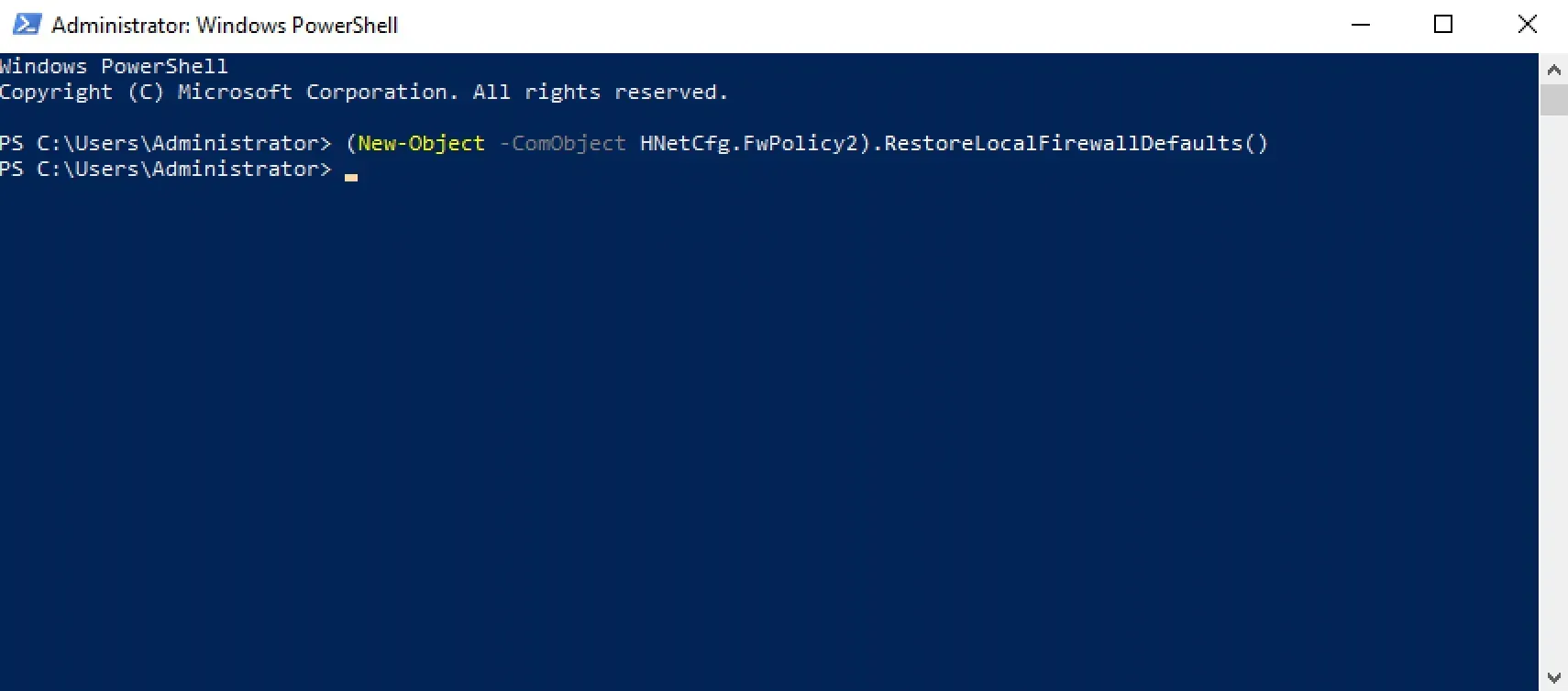
Restore Windows Firewall Defaults - Step 14


Vladimir Mikhalev

Docker Captain  ·  CNCF Ambassador  ·  IBM Champion

The Verdict — production-tested analysis on YouTube.

The Verdict

Inconvenient truths about shipping in the AI era

Container security, platform engineering, and the agentic shift — tested in production, argued without the hype. The verdict reaches your inbox the moment there's one worth sending.

Related Posts

Same category
  1. 1
    Recovering a Corrupt Exchange Database with Stellar Repair — Real-World Lab Test
    SysAdmin & IT Pro · We deliberately broke an Exchange 2019 server to test Stellar Repair on a dirty-shutdown EDB file. The recovery process, lab setup, and lessons learned.
  2. 2
    Terminal, Shell, Command Line, Prompt: Four Words, Four Things
    SysAdmin & IT Pro · The terminal is the window, the shell runs your commands, the prompt says it is ready, the command line is the idea. Plain definitions, examples, a cheat sheet.
  3. 3
    Install Ubuntu Server 22.04 LTS
    SysAdmin & IT Pro · Step-by-step guide to install Ubuntu Server 22.04 LTS. Covers language, disk setup, OpenSSH, user creation, and system configuration for beginners.
  4. 4
    Install OTRS on Ubuntu Server
    SysAdmin & IT Pro · Guide to installing OTRS Community Edition on Ubuntu Server — configure PostgreSQL, Apache, and SSL with Let's Encrypt, and launch OTRS securely.

Random Posts

Random
  1. 1
    Rocket.Chat in Slack Color
    Self-Hosting · Customize Rocket.Chat to look like Slack with this step-by-step guide. Learn how to apply Slack's color palette using Rocket.Chat's admin layout settings.
  2. 2
    Install Bitbucket on Ubuntu Server: PostgreSQL, Apache, Let's Encrypt
    Self-Hosting · Bitbucket on Ubuntu Server step by step: the PostgreSQL database, an Apache reverse proxy with certbot certificates, the installer, and the first login.
  3. 3
    Disable Server Manager Autostart in Windows Server 2012 R2
    SysAdmin & IT Pro · Learn how to disable Server Manager autostart in Windows Server 2012 R2 using Server Manager settings, Task Scheduler, CMD, and PowerShell.
  4. 4
    The Senior Engineer Signal: The 2026 Risk Your Velocity Metrics Hide
    Opinion & Culture · Juniors get the biggest boost from AI; seniors trust it least. That split is your earliest read on engineering risk, and on the talent you're about to lose.
Restore Windows Firewall Defaults: Back Up the Rules First, Then Reset
https://heyvaldemar.com/restore-windows-firewall-defaults/
Author
Vladimir Mikhalev
Published
2021-04-16
Updated
2026-11-05
License
CC BY-NC-SA 4.0